Written by Giorgos
Edited on
6 October 2025
·
10:43
What's daisy chaining and what can you use it for?
With daisy chaining, you connect a monitor directly to another monitor, so you increase the screen space. This way, you'll have less cables that can tangle, and you keep everything organized. We'll explain how you can get started with daisy chaining and what the benefits are in this article.

What's daisy chaining?
Daisy chaining connect multiple monitors to each other. Instead of putting a cable in the laptop or desktop, it goes into another monitor. With daisy chaining, you keep all cables organized and they won't tangle. You also extend the range between the monitors and source desktop or laptop.

advantages of daisy chaining
With daisy chaining, you improve the screen space. The cables stay organized, and you don't have to use an extra connector of your laptop or desktop. That's useful if you use these already, for example. Daisy chaining is also possible with more than 1 monitor. You can connect a third screen to the second screen, and a fourth screen to the third, and so on. Keep in mind that the image of the connected monitors loses image quality. The maximum number of screens is determined by the video card of your desktop or laptop.
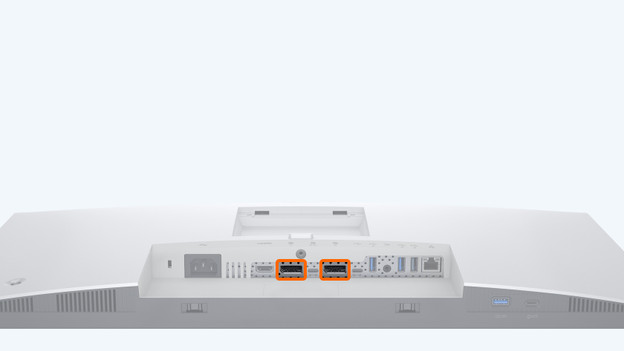
How does it work?
Daisy chaining has a few conditions. First, your monitors have to have at least 2 DisplayPort 1.2 connectors. We'll help you out with this step-by-step guide:
- Make sure all graphic drivers are updated to the latest version.
- Connect the first monitor to the PC via DisplayPort.
- Connect the second monitor to the first monitor via the second DisplayPort OUT connector.
- Turn on DisplayPort 1.2 via the screen menu. This differs per monitor. You can use the manual for this.
- Make sure that DisplayPort 1.2 is disabled on the last monitor of the chain.
Suitable monitors and cables for daisy chaining
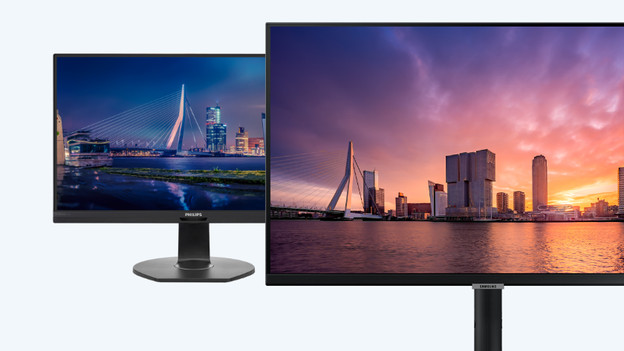
Suitable monitors
A monitor is suitable if it has at least 2 DisplayPort connectors. You use one connector for the input from your desktop or laptop, and the other provides the output for the next screen. In addition to DisplayPort, daisy chaining is also possible with a USB-C or Thunderbolt 3 connector. You do need a DisplayPort adapter in that case. Does your monitor only have an HDMI connector? The monitor isn't suitable for daisy chaining.
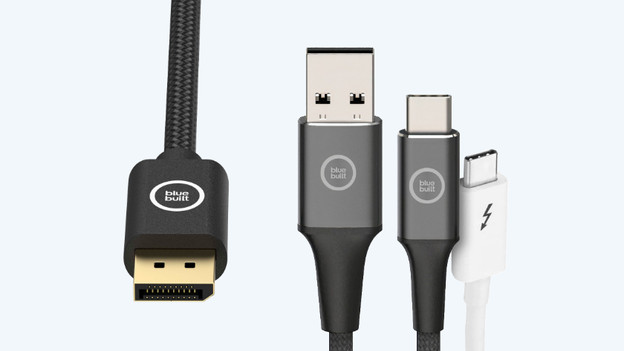
Suitable cables
The keyword for cables is bandwidth. A DisplayPort 2.1 cable transfer the highest bandwidth, so you send a high quality to the other monitors. This way, you'll always have a sharp image, also on the outer monitors. For USB-C and Thunderbolt 3, you need an adapter. Keep in mind that USB-C only works for Windows computers. For Mac devices, you need a Thunderbolt 3 cable.
Article by Giorgos
Monitor Expert.