Welcome to your environment! You can order everything from your assortment with your personal budget here.

You can always return to the normal Coolblue website by clicking here.

Your outstanding budget (incl. VAT) is always visible here, so you know exactly how much you can spend.

Coolblue home

Help with your product
NEN Pack Light
0 reviews

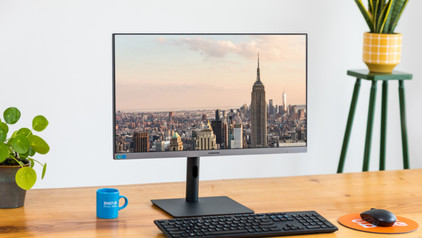
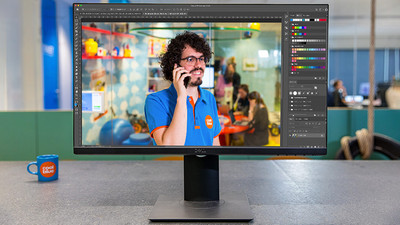
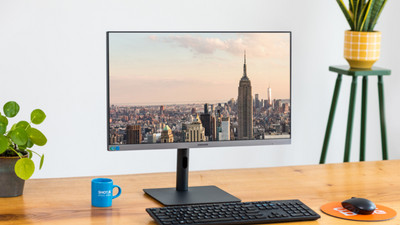
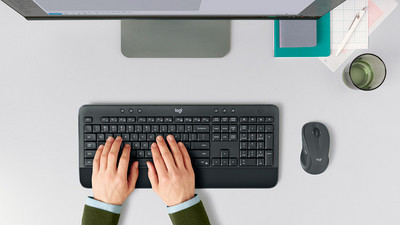
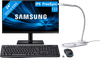
With the NEN Pack Light, you complete your home office setup in one go. It consists of the Samsung LF24T450FQUXEN 24-inch monitor, the Logitech MK270 wireless QWERTY keyboard and mouse, and the Soundlogic Desk Lamp with wireless charger function. You can create an ergonomic working posture by adjusting the monitor in different ways. Turn, tilt, or adjust the screen in height to assume the right position for your working day. The Logitech keyboard and mouse have a maximum range of 10m thanks to the USB nano receiver. And because the set is wireless, you won't get tangled cables anymore. You can adjust up to 8 shortcuts on the keyboard for quick and direct access to music, email, and other programs you use often. In addition to lighting, the Soundlogic Desk Lamp also has a charger for your smartphone. You simply place your phone on the base of the desk lamp to charge it wirelessly. The lamp has a bright light you can set to 3 shades of white, cold white light, warm white light, and a medium light.

Read all tips here

Which product do you want to see articles about?

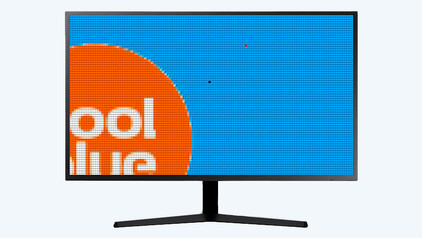
Solve dead pixels on your monitor

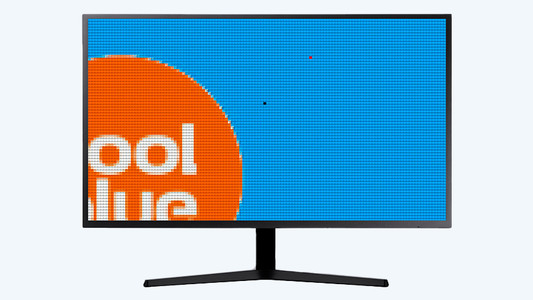
If a pixel on your monitor has a different color, you're dealing with a dead or stuck pixel. These pixel problems are quite different, in terms of both cause and solution. For example, a stuck pixel can be fixed, but a dead pixel can't. In this article, we'll explain what causes these problems, how to discover them, and what you should do.

Solve dead pixels on your monitor

If a pixel on your monitor has a different color, you're dealing with a dead or stuck pixel. These pixel problems are quite different, in terms of both cause and solution. For example, a stuck pixel can be fixed, but a dead pixel can't. In this article, we'll explain what causes these problems, how to discover them, and what you should do.

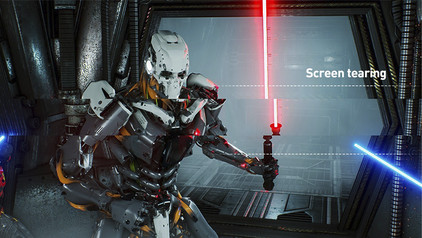
How do you solve screen tearing and stuttering?

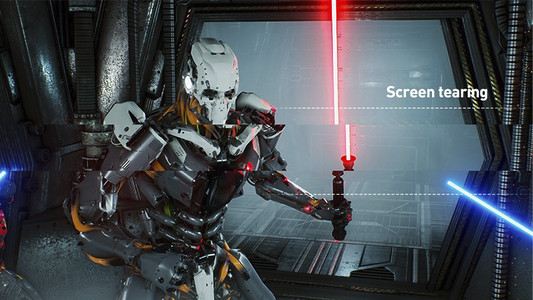
If you want to prevent screen tearing and stuttering, it's important that your video card and monitor are synchronized. There are 3 technologies that match the fps of your graphics card to the refresh rate of your gaming monitor. These are G-Sync, FreeSync, and VSync. We'll explain how to set this up on your computer.

How do I connect a monitor to a tablet?

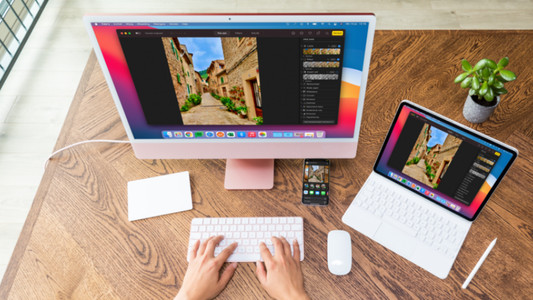
A tablet is a good replacement for your laptop or desktop. But what if you want to work with your tablet on a slightly larger screen? In this article, I'll explain how to connect your iPad or Android tablet to an external monitor.

How do I solve problems with my wireless keyboard and mouse?

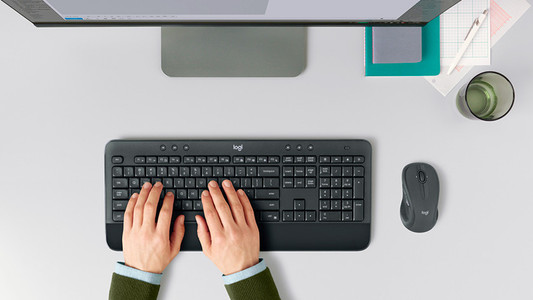
Is the connection of your wireless keyboard or mouse poor? Or does your peripheral not have any connection at all? Then you can try out a couple of things. You can switch USB ports or put in new batteries, for example. In this article, you can read what you can do to solve problems with your wireless peripherals yourself.

How do I set up a second display?

A second screen gives you extra screen space when you're working on a laptop or desktop. You can connect this in no time. Plug the connector of the monitor into a socket before you start. We'll explain how to install the screen and connect it to your computer.

How do you ensure a good sitting posture?

Sometimes it's hard to find the correct sitting position, especially when you work from home. We explain how to sit in the best sitting position on your desk chair, what the ideal height is for your desk, and how to setup your equipment ergonomically. That way, you can work comfortably both at home or at the office.

How do you ensure a good sitting posture?

Sometimes it's hard to find the correct sitting position, especially when you work from home. We explain how to sit in the best sitting position on your desk chair, what the ideal height is for your desk, and how to setup your equipment ergonomically. That way, you can work comfortably both at home or at the office.

How do I solve problems with my wireless keyboard and mouse?

Is the connection of your wireless keyboard or mouse poor? Or does your peripheral not have any connection at all? Then you can try out a couple of things. You can switch USB ports or put in new batteries, for example. In this article, you can read what you can do to solve problems with your wireless peripherals yourself.

How do I solve problems with my wireless keyboard and mouse?

Is the connection of your wireless keyboard or mouse poor? Or does your peripheral not have any connection at all? Then you can try out a couple of things. You can switch USB ports or put in new batteries, for example. In this article, you can read what you can do to solve problems with your wireless peripherals yourself.

How do I solve problems with my wireless keyboard and mouse?

Is the connection of your wireless keyboard or mouse poor? Or does your peripheral not have any connection at all? Then you can try out a couple of things. You can switch USB ports or put in new batteries, for example. In this article, you can read what you can do to solve problems with your wireless peripherals yourself.

Solve dead pixels on your monitor

If a pixel on your monitor has a different color, you're dealing with a dead or stuck pixel. These pixel problems are quite different, in terms of both cause and solution. For example, a stuck pixel can be fixed, but a dead pixel can't. In this article, we'll explain what causes these problems, how to discover them, and what you should do.

Solve dead pixels on your monitor

If a pixel on your monitor has a different color, you're dealing with a dead or stuck pixel. These pixel problems are quite different, in terms of both cause and solution. For example, a stuck pixel can be fixed, but a dead pixel can't. In this article, we'll explain what causes these problems, how to discover them, and what you should do.

How do you solve screen tearing and stuttering?

If you want to prevent screen tearing and stuttering, it's important that your video card and monitor are synchronized. There are 3 technologies that match the fps of your graphics card to the refresh rate of your gaming monitor. These are G-Sync, FreeSync, and VSync. We'll explain how to set this up on your computer.

How do I connect a monitor to a tablet?

A tablet is a good replacement for your laptop or desktop. But what if you want to work with your tablet on a slightly larger screen? In this article, I'll explain how to connect your iPad or Android tablet to an external monitor.

How do I set up a second display?

A second screen gives you extra screen space when you're working on a laptop or desktop. You can connect this in no time. Plug the connector of the monitor into a socket before you start. We'll explain how to install the screen and connect it to your computer.

How do you ensure a good sitting posture?

Sometimes it's hard to find the correct sitting position, especially when you work from home. We explain how to sit in the best sitting position on your desk chair, what the ideal height is for your desk, and how to setup your equipment ergonomically. That way, you can work comfortably both at home or at the office.

How do you ensure a good sitting posture?

Sometimes it's hard to find the correct sitting position, especially when you work from home. We explain how to sit in the best sitting position on your desk chair, what the ideal height is for your desk, and how to setup your equipment ergonomically. That way, you can work comfortably both at home or at the office.

How do you solve connection issues with your monitor and laptop?

You bought a monitor, but you can't get it to connect to your laptop. In this article, you can read how to connect your monitor to your laptop in 4 steps.

Subjects

Didn't find your answer?

Find an answer to your question quickly and easily via our customer service.

Coolblue specialist
Personal chat Digitalk.
You're now chatting with Coolblue customer service
This chat is closed
foo
Oeps File size is larger than 5MB. Upload a smaller file.