
Written by Gijs
Edited on
27 February 2025
·
15:41
How do you extend the battery life of your laptop?
If you use your laptop a lot on the go or outside the house, you want to work as long as possible on a single charge. Sometimes, the battery empties faster than you like, especially if you work with graphic programs or surf the internet a lot. On this page, you can find useful tip to extend the battery life of your laptop.
Tips for extending battery life
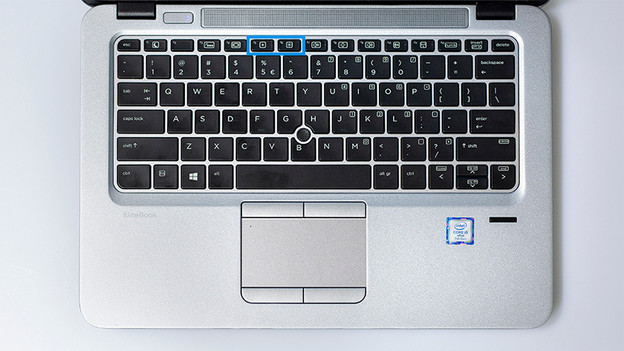
Brightness
If you're working in the evening, or when you use the laptop in a badly lit area, it's smart to lower the brightness of the screen. With the function buttons on the keyboard, you can adjust the brightness as you like. Make sure you can still comfortably read the screen.
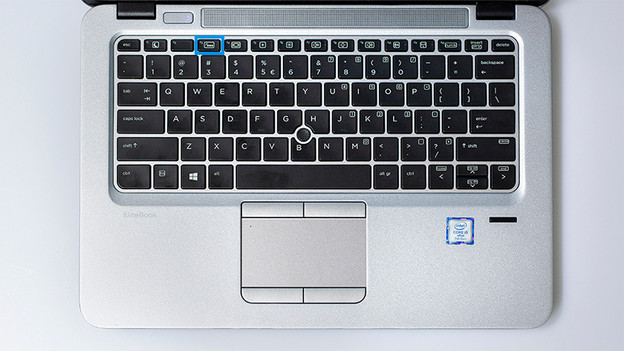
Keyboard backlight
When you work during the day, or in a well-lit area, it's smart to turn off the backlighting of the keyboard. You can do so with the function button on the keyboard. Do you know how to touch type? You can consider always leaving the keyboard backlighting turned off.
Energy and screensaver settings
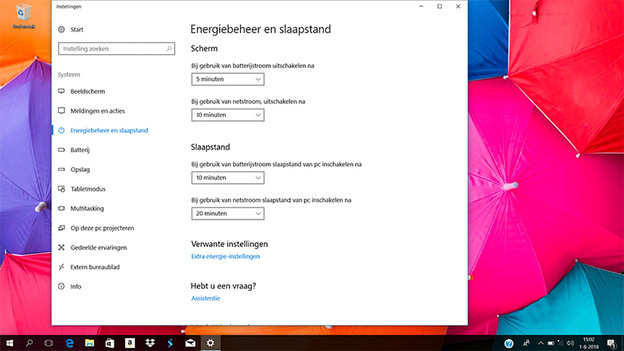
Energy and sleep settings
Click on the magnifier in the bottom left of the screen and search for energy and sleep settings. In this menu, you can change the time it takes before the screen of the laptops turns off. Choose a short period so save as much energy as possible. If you're not using the laptop, it will go into sleeping mode sooner.
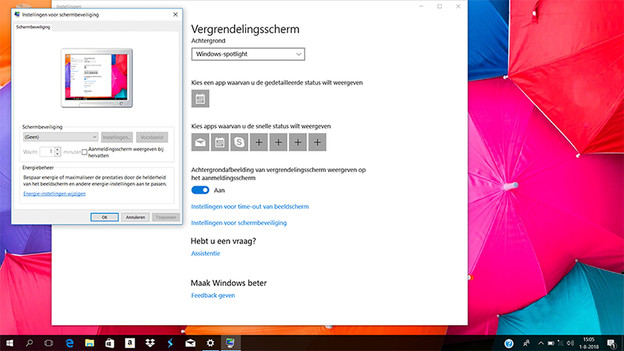
Screensaver
If you still use a moving screensaver, it's useful to turn this off. The moving images use a lot of energy while you're not using the laptop. You can turn this off by using the magnifier to look for screen saver. In this window, you can click on screen saver settings. In the next window, make sure it's set to (None).
Wireless connections and peripherals
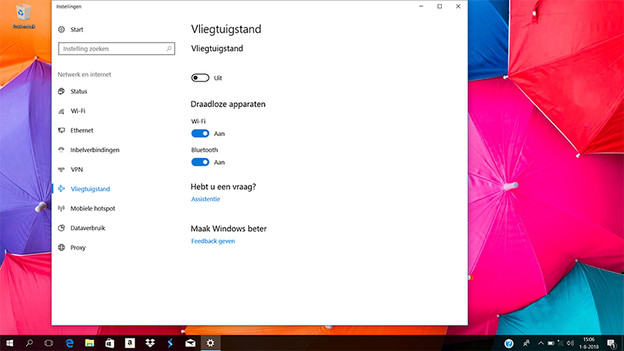
WiFi and Bluetooth
Are you not using the internet because you're doing come bookkeeping? Turn off the WiFi. As long as WiFi is turned on, it keeps on looking for networks and that uses a lot of power. The same counts for Bluetooth. You can use the magnifier in the bottom left to look for Flight Mode. Turn on Flight Mode to turn off WiFi and Bluetooth. Do you want to keep using 1 of the 2? Only turn off the one you don't need.
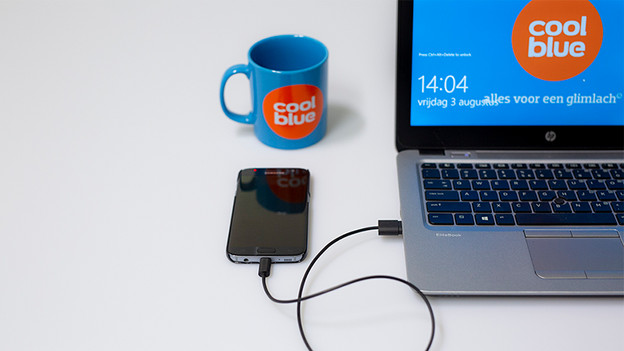
Peripherals
When you're charging your smartphone or connecting an external hard drive, you laptop uses power. Disconnect external devices to save power. You can charge your phone via the socket, for example.
Article by Gijs
Laptop Expert.
