Written by Giorgos
Edited on
25 August 2026
·
09:04
Everything on connectors on your monitor
A monitor has different connectors that can be used to connect other appliances. It doesn't matter if it's a laptop, desktop, or Mac, there's always a suitable connector. In this hub, you can read what the different connectors are, how to connect a monitor, and what the extra options are, such as daisy chainging.
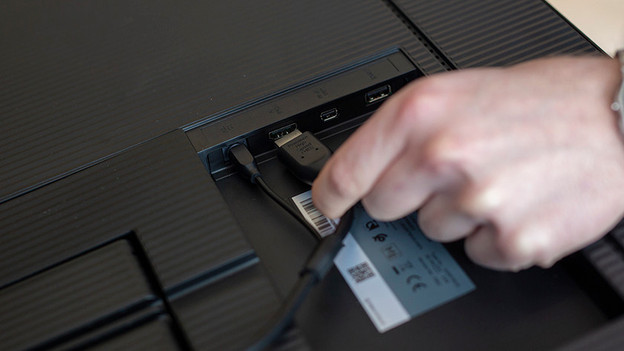
Connectors per usage situation
Which connector you use depends on how you're going to use the monitor. For example, it's better to use the DisplayPort connector for gaming, but the HDMI for a home office. In the following advice article, you can read the differences between digital and analogue connectors, the different versions of digital connectors, and which extra connectors are available on your monitor.
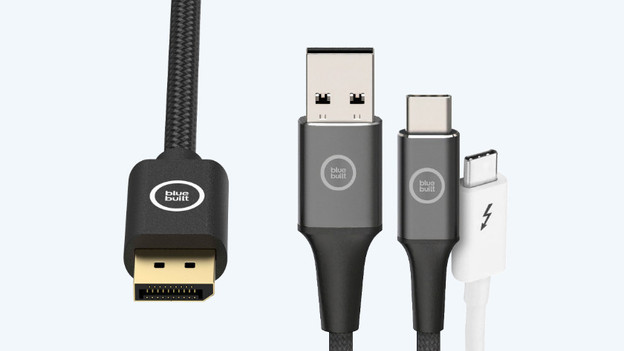
Choose the right cable
Besides the right connector, you also need the right cable. A DisplayPort cable has more power than an HDMI cable, and not all USB-C cables transfer image signals. In addition, not all cables fit on a specific appliance, the many different DVI cables, for example. The following advice article has all the answers to your questions about cables.
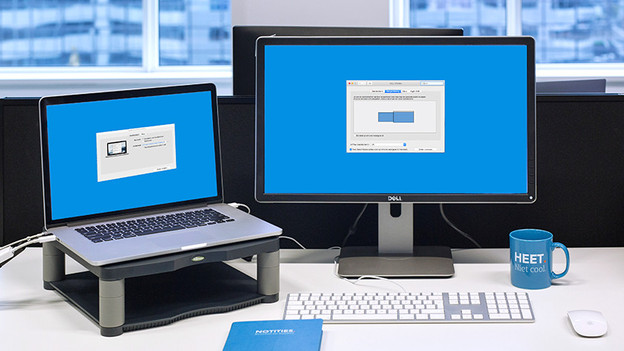
Laptop, desktop, and Mac
You bought a monitor to use as a second screen next to your laptop, desktop, MacBook, or iMac. At first glance, there doesn't seem to be a difference between the appliances, but there is. We've listed everything for you to help you on your way. That way, you can avoid the pitfalls and frustrations while connecting.
Other products
Besides a laptop, desktop, or Mac appliances, you can also connect other appliances. For example, if you work on your tablet often. Or, if you need a docking station due to a tangle of cables.
Daisy chaining
Daisy chaining is connecting a monitor directly to another monitor via DisplayPort or USB-C. This direct connection allows you to neatly keep all your cables and keep your desk well-organized. In the following articles, you can read what you need for this exactly and how you can set it up.
Connecting a monitor arm
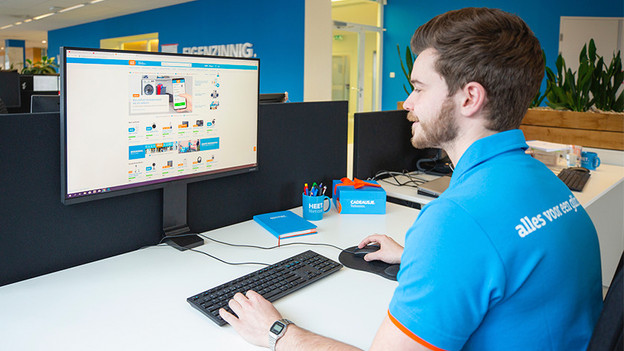
A comfortable and ergonomic sitting posture is important during your working day. You want to finish your working day without neck and back complaints. A monitor arm is a great solution for this. It allows you to mount your monitor on the wall or let it hover over your desk. In the following advice article, we'll explain to you how to mount a monitor to a monitor arm in 4 steps.
Advantages of a USB-C monitor
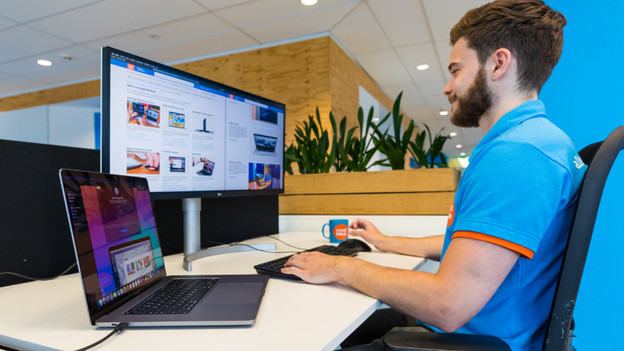
USB-C is a universal connector that combines 3 tasks. It sends image signals, transfers data, and charges an external device. Basically, all you need on a desk combined in one cable. Nowadays, many laptops, desktops, and MacBook models have one or more USB-C or Thunderbolt 3 ports. In this article, you can read the advantages of a USB-C monitor.