
Written by Jelle
Edited on
23 August 2022
·
12:54
How do you charge your Apple Magic Keyboard and Magic Mouse?
With an Apple Magic Keyboard and Magic Mouse or Magic Trackpad, you can work wirelessly. You don't any batteries, but can charge the Apple Magic Keyboard and Magic Mouse with the included cable. We'll tell you everything you need to know about charging your Apple Keyboard here.
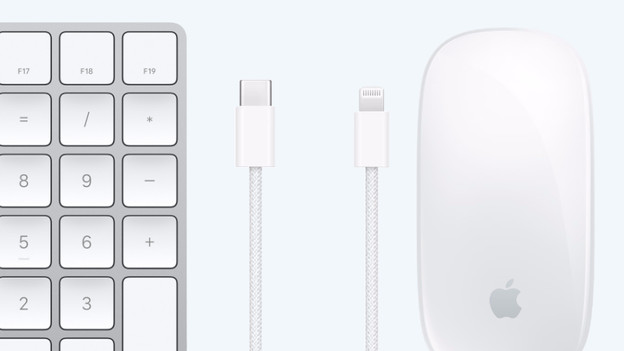
Get started with charging your Apple keyboard and mouse
With these tips, you can easily charge your Apple Magic Mouse, Magic Keyboard, and Magic Trackpad:
- Tip 1: charge the battery with the included cable.
- Tip 2: check the battery level.
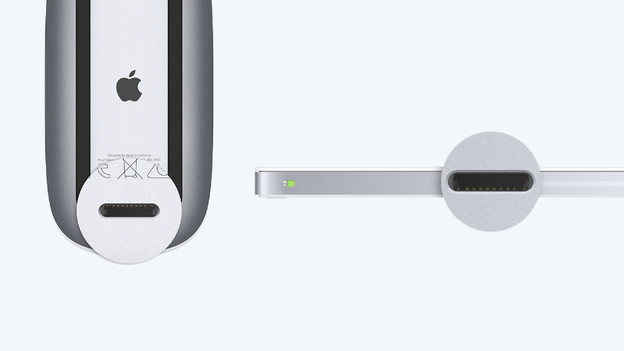
Tip 1: charge the battery with the included cable
You can charge the battery with the included Lightning to USB-C cable:
- Find the Lightning port on your Apple mouse or keyboard.
- Connect the Lightning to USB-C cable to the Lightning connector. Connect the other end of the cable to one of the USB-C ports on your MacBook.
- Make sure that the keyboard or mouse is switched on when you charge it.
- The battery is now charging.

Tip 2: check the battery level
The battery of your Apple Magic Keyboard, Apple Magic Mouse, or Apple Magic Trackpad lasts over a month on 1 single charge. You can easily check the battery level in macOS. Click on the Bluetooth icon in the menu. In the menu that appears. you'll see all the connected Bluetooth devices and the battery level of your Apple mouse or keyboard.
Article by Jelle
Laptop Expert.
