Written by Evany
Edited on
10 July 2025
·
07:47
How do you make a screen recording on your iPhone?
Sometimes, you want to take a screenshot of a part of an interesting article you're reading or of a video you're watching. You can do that in different ways. For example, use the buttons on the sides of your iPhone or tap the back 2 times. We'll explain how to take a screenshot in this article.
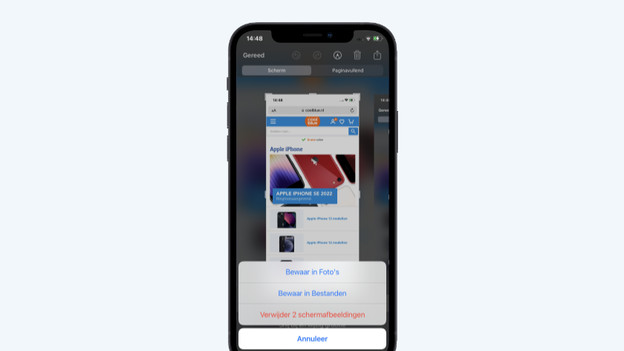
Take a screenshot on your iPhone
You can easily take a screenshot on your iPhone. It does differ between models with and without a Home button. The first 2 ways are for a still image. The third way is for a moving image, like videos. If you've taken a screenshot, you can find the photos and videos in the standard Photos app.
- Tip 1. Take a screenshot via the buttons
- Tip 2. Take a screenshot by tapping
- Tip 3. Make a screen recording via the 'Control panel'
Tip 1: take a screenshot via the buttons
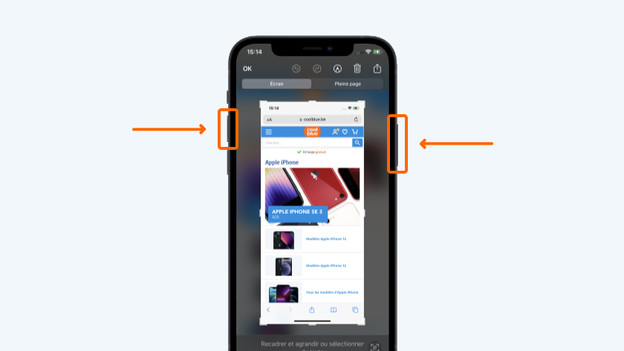
iPhone with Face ID
If you have a model without a Home button, follow the steps below.
- Briefly press the on/off button on the right and the volume up button at the same time.
- You'll see a flash on the screen a a small preview of the screenshot in the bottom left.
- When you tap that, you can edit the screenshot. If you don't want to, tap 'Done' and choose if you want to save the screenshot.
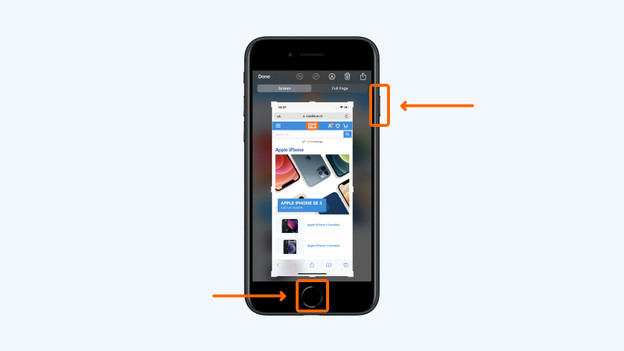
iPhone with a Home button
Do you have a model with a Home button? Go through the steps below.
- Briefly press the on/off button on the right and the Home button at the same time. With the iPhone 5S or older, the on/off button is at the top.
- You'll see a brief flash on the screen. Afterwards, you'll see a preview of the screenshot in the bottom left.
- When you tap the preview, you can edit the screenshot. If you don't want to, choose 'Done' and choose where to store the screenshot.
Tip 2: take a screenshot by tapping
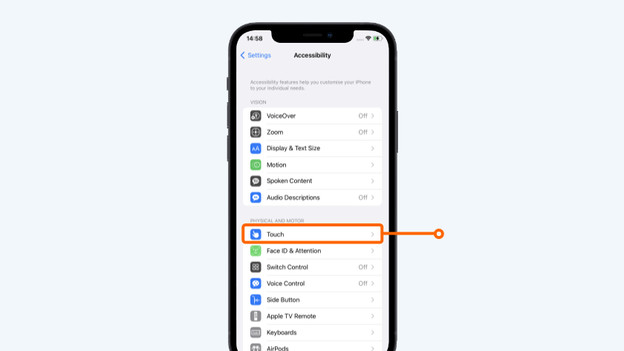
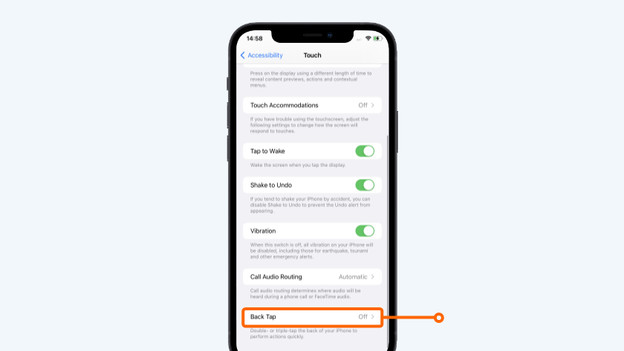
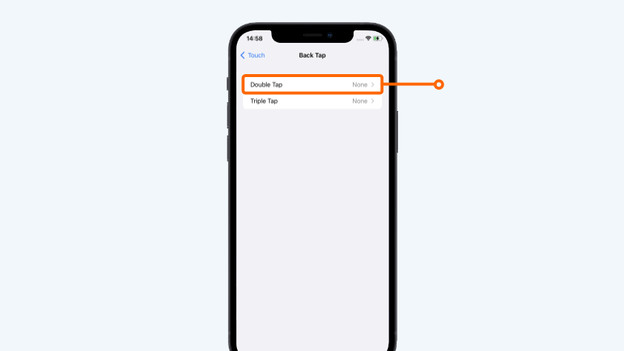
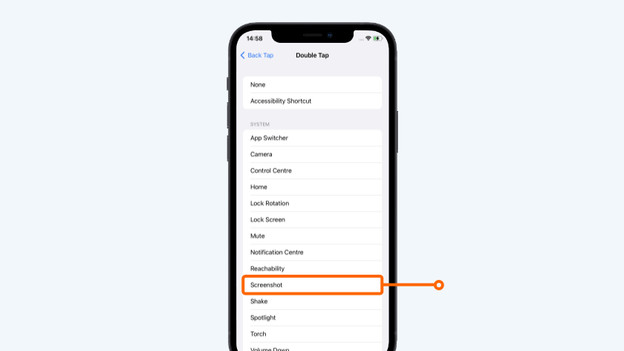
This option only works when your iPhone has iOS 14 or newer. You might have to set it up first. Do so as follows:
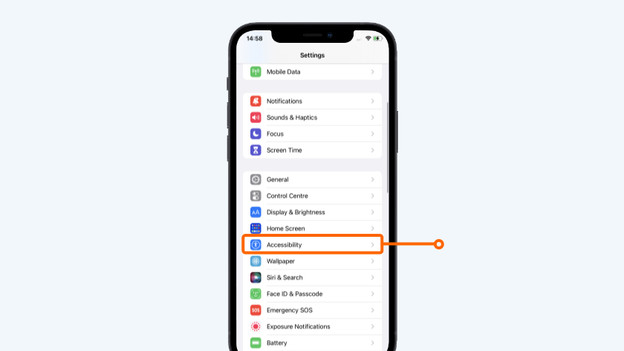
- Go to 'Settings'.
- Scroll down and tap 'Accessibility'.
- Tap 'Touch'. Scroll down and choose 'Back Tap'.
- If you want to tap 2 times for a screenshot, choose 'Double tap'.
- Select 'Screenshot'. From now on, you can also take screenshots by tapping the middle of the back of your iPhone 2 times.
Tip 3: make a screen recording via the 'Control panel'
Sometimes, you see a video you can't download that you still want to save. In this situation, you can make a screen recording.
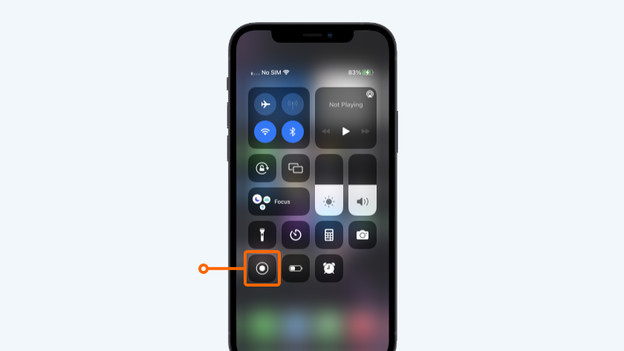
- Swipe downwards on the screen from the top right.
- You'll now see the 'Control panel'.
- Tap the icon with the recording button.
- Go to the app where you can find the video and play the video.
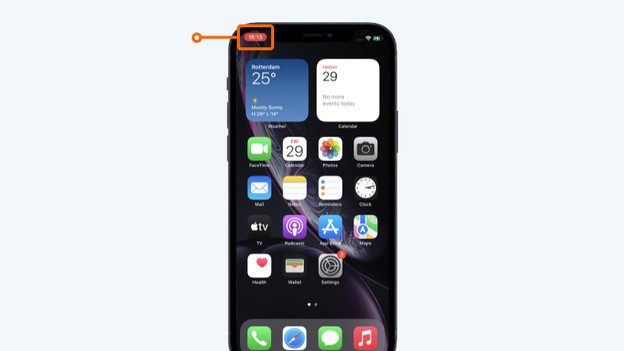
- Is the video over? Tap the red icon in the top left. Choose 'Stop'. The screen recording is saved automatically.

Article by Evany
Apple Expert.