Written by Jorn
Edited on
27 February 2025
·
15:40
How do you set up your LG television?
Did you buy a new LG TV? It's time to set it up. In this article, we'll tell you how you do that step by step. Do you have an LG smartphone? Keep it close by to download the ThinQ app, so you can connect your phone to the TV.
Set up your LG TV in 5 steps
Step 1: select country and language
Step 2: select the right WiFi network and connect
Step 3: select the right installation method of your TV
Step 4: choose antenna, cable, or satellite reception
Step 5: have the TV search for channels
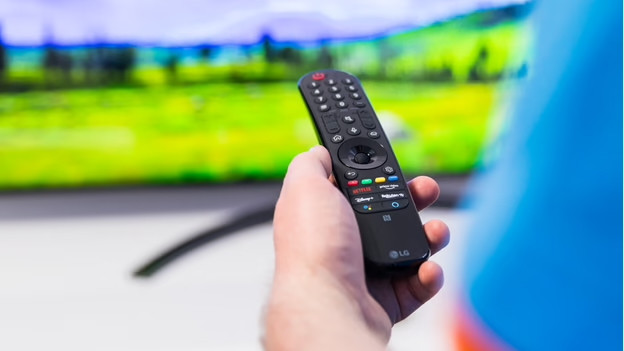
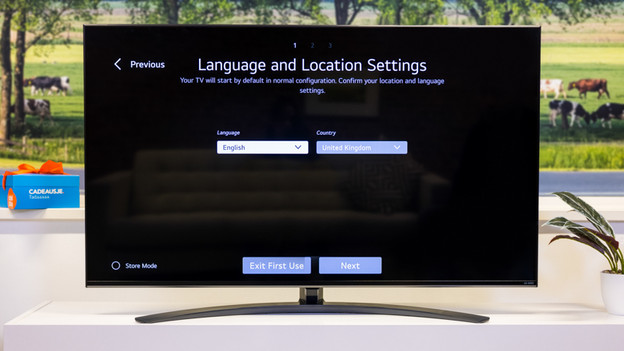
Step 1: select a country and language
During the first step, your television wants to know in which country it is and which language you speak. For the first option, choose the country where you live and then the language of the settings and notifications of the LG TV. Then, click 'next'.
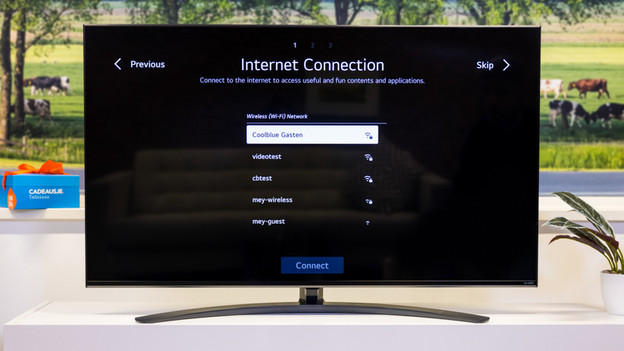
Step 2: select the right WiFi network and connect
Select the WiFi network you want and enter the password of the network to connect. Don't you want to connect to the internet yet? Select 'skip' in the top right.
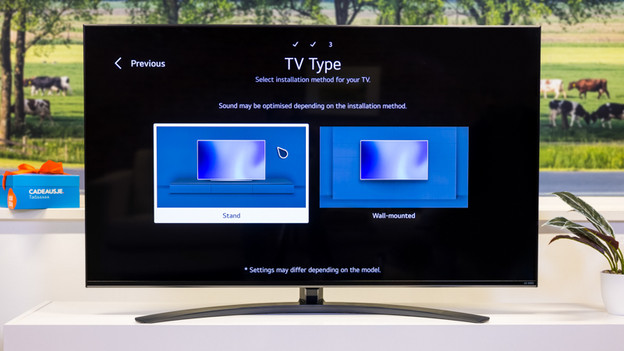
Step 3: select the installation method of your TV
Select 'Stand' if you put the TV on a cabinet, TV furniture, or the floor. Select 'Wall mount' if the television is mounted to the wall.
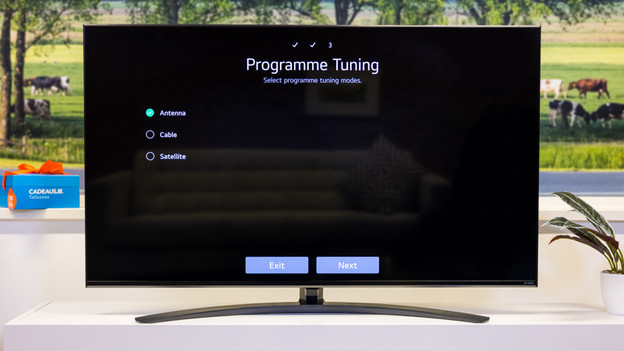
Step 4: choose antenna, cable, or satellite reception
Select how you want to receive channels. Choose 'Antenna', 'Cable, or 'Satellite'. In the following screen, choose your TV provider.
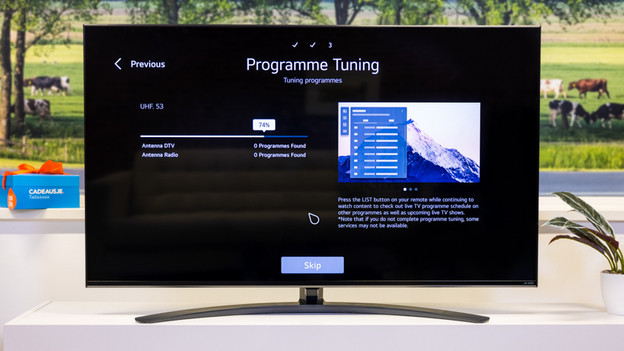
Step 5: let the TV search for channels
During the next step, your television will ask you how it has to search for channels. Most new televisions will only search digitally, but in some cases, the TV can also search in an analog way. Choose the option which applies to you and press 'Next'. After your LG TV has searched for all channels, it'll show an overview of all the results. Press 'Done' to finish the searching process.