Written by Jorn
Edited on
21 March 2025
·
16:32
3 tips when your smart TV apps don't work
Do some apps not work well on your smart TV? Or don't they start at all? In this article, we'll give 3 easy tips to solve these problems. You can enjoy your favorite TV apps in no time.

3 tips to solve it
With these 3 tips, your apps will quickly work again. Start with tip 1, because that's the easiest one. Doesn't it work? Try tip 2 or tip 3.
Tip 1: update the app
Tip 2: remove the internet memory from the TV
Tip 3: revert the television to factory settings
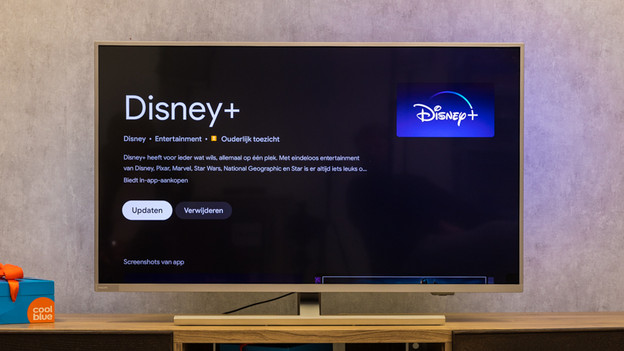
Tip 1: update the app or install it again
Check in the settings of the app if you have the latest version. You can find these settings in the app itself. The manufacturer's website will have the most recent version of the app. Do you have an outdated version? Update the app. Doesn't it work? Remove the app from your television entirely and install it again.

Tip 2: remove the internet memory of your TV
Didn't the first tip work? Open the general settings of your television and look for the network settings. This will show an option to remove the internet memory of the TV. Wipe the internet memory and try to restart the app.
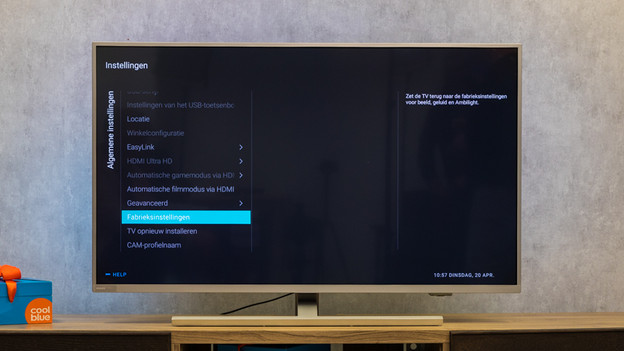
Tip 3: revert the TV to factory settings
Didn't anything work? Revert the TV back to factory settings. Most television will have this option in the settings under 'Factory settings' or 'Reinstall TV'. Keep in mind that you also wipe image and sound settings with this tip. You list of channels often stays unchanged.
Article by Jorn
Television Expert.