Written by Evany
Edited on
25 August 2026
·
15:23
How do you make a backup of your iPhone?
It's smart to regularly make a backup of your iPhone. Without a backup, you'll lose all your data when your device breaks. You can make a backup copy of your iPhone in multiple ways. With iCloud, Finder, or iTunes on Windows. In this article, we'll explain how to do so.

Make an iPhone backup
An accident with your iPhone can happen when you don't expect it. That's why you should regularly make a backup and make sure you don't lose all your valuable photos and other important files. You can do so in 3 different ways:
- Make an iPhone backup with iCloud
- Make a backup with your Mac
- Make a backup with Windows
Make an iPhone backup with iCloud
You can easily make a backup on your iPhone with iCloud. Note that you need an iCloud subscription for that. You can make a backup via iCloud like this:
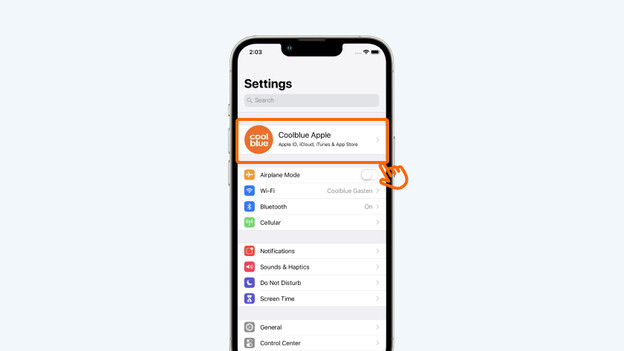
- Go to Settings on your iPhone and tap on your name at the top.
- Choose iCloud.
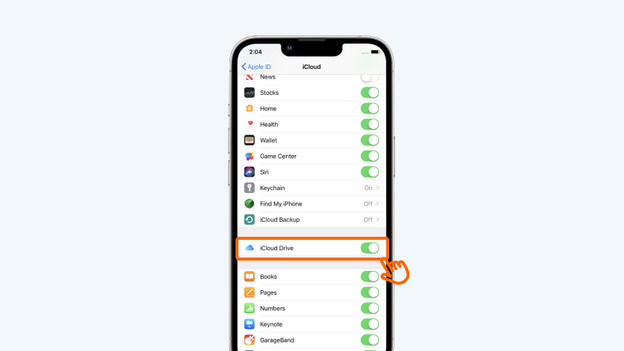
- Tap 'iCloud Backup'.
- Turn on the slider at 'Back Up Now'.
- You now make a backup.
Top on your name at the top
Choose iCloud
Tap iCloud Backup
Turn on the slider at iCloud Backup


Make a backup with your Mac
Don't you use iCloud, or do you prefer to store the backup on the storage of your Mac? Follow the steps below:
- Connect your iPhone to your Mac with a Lightning cable.
- Open Finder. This is included in MacOS on your iMac, MacBook, or Mac Mini by default.
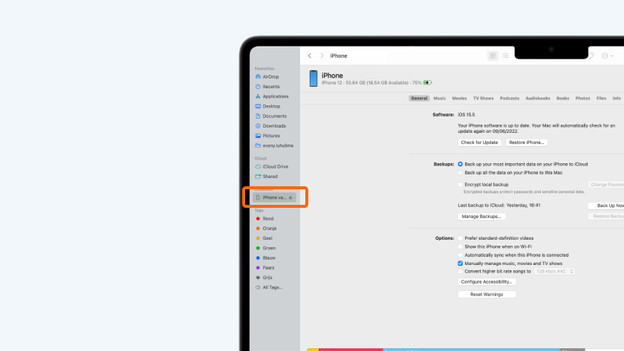
- In Finder, select your iPhone. You can find it in the menu on the left under 'Locations'.
- Go to the 'General' tab and click 'Back Up Now'.
- Only disconnect your iPhone when the backup is finished.
Open Finder
Select your iPhone in Finder
Go to 'General' and make a backup


Make a backup with Windows
If you have a Windows computer, you can easily make a backup via iTunes. If iTunes isn't on your computer, you can download this app for free from the Microsoft Store.
- Connect your iPhone to your Windows computer with a Lightning cable. Open iTunes and allow access to your iPhone when requested.
- In iTunes, you'll see a side bar on the left with 'Library' and 'Devices', among other things. At the top, you'll see a small iPhone icon. Click on the icon.
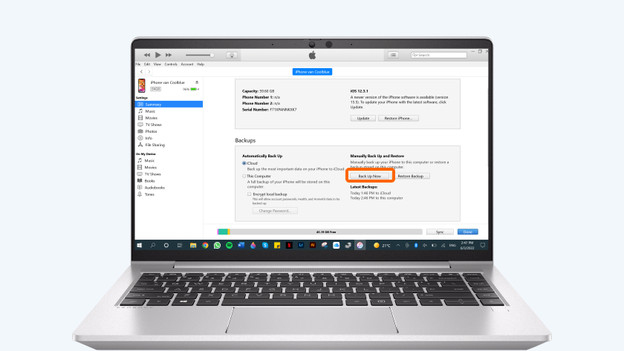
- Click on 'Overview' and click on 'Make backup'.
- Click on 'Encrypt local backup' and come up with a password. Remember this password and write it down somewhere. The backup will now be made.
- Don't eject the device before iTunes is done making the backup.
Allow access to your iPhone
Click 'iPhone' under 'Devices'
Make a backup now


Article by Evany
Apple Expert.