Written by Lucinda
Edited on
23 June 2023
·
18:44
How do you set up email on your iPad and iPhone?
You can set up your email in different ways on your Apple iPad or Apple iPhone. You can do it automatically or manually. In this article, we'll first explain how to set up an email account automatically via the Mail app. Doesn't this method work? We'll also explain how to add an email account manually.
Set up an email account automatically
If you have an email account from a well-known provider, you can easily set up your account automatically. Examples of well-known providers are Google and Outlook.
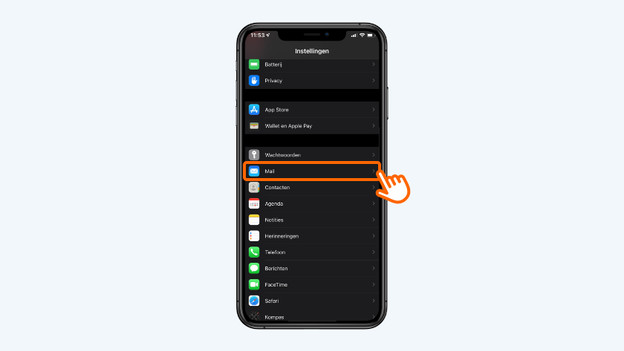
- Go to 'Settings' and tap 'Mail'.
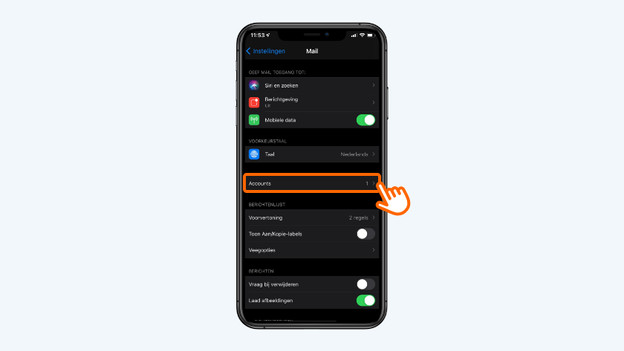
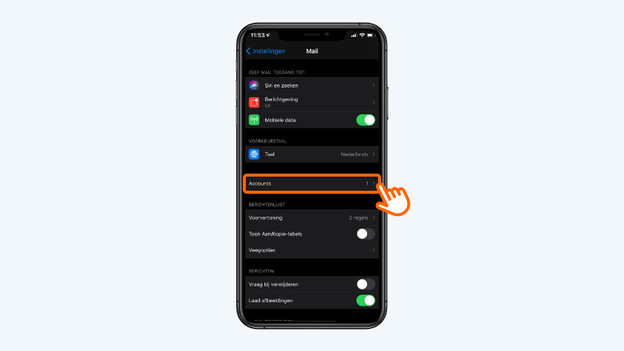
- Choose 'Accounts'.
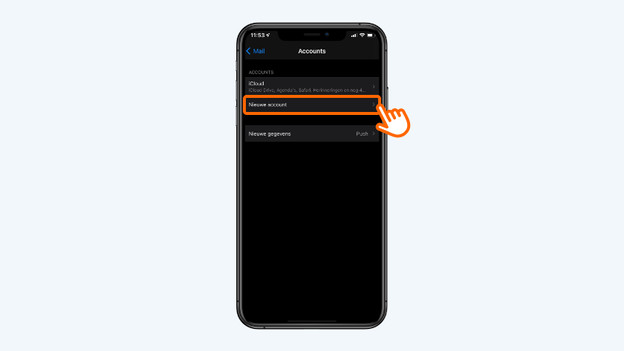
- Tap 'Add Account'.
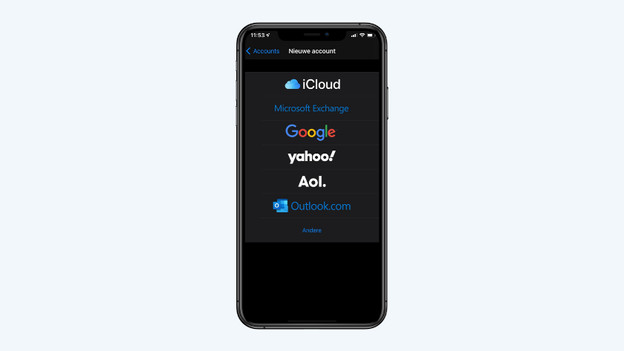
- Select your email provider.
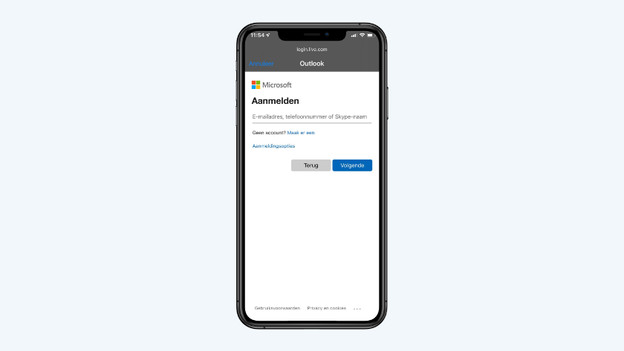
- Enter your email address and password.
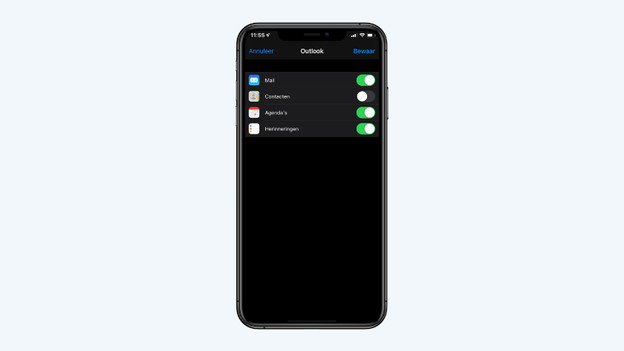
- Choose if you want to transfer your contacts, calendars, and reminders.
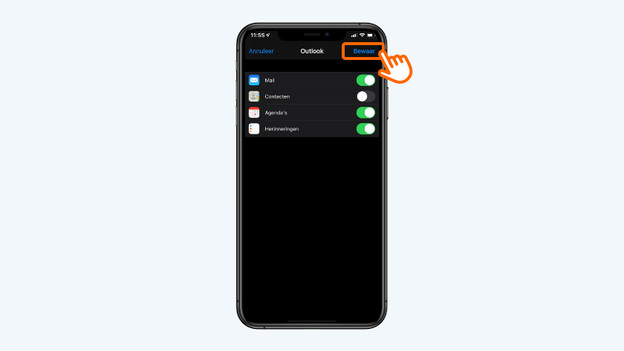
- Tap 'Save' in the top right corner.
Go to 'Settings' and tap 'Mail'
Choose 'Accounts'
Tap 'Add Account'
Select your email provider
Enter your email address and password
Select what you want to transfer
Tap 'Save'
Set up email account manually
Do you have a different email provider or can't manage to set up your email automatically? Try setting it up manually. You do need to have access the email settings of your account.
- Go to 'Settings' and tap 'Mail'.
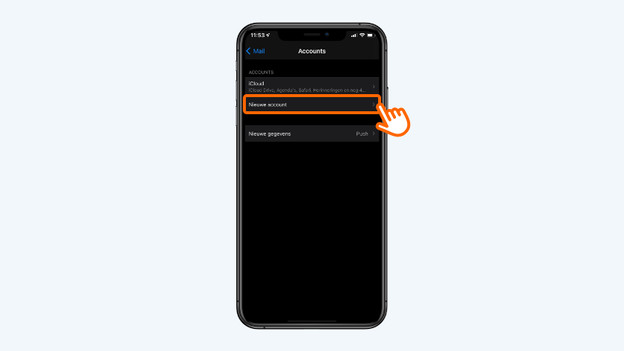
- Choose 'Accounts'.
- Tap 'New Account'.
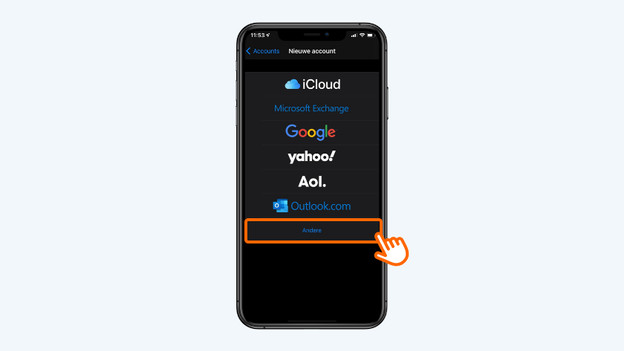
- Choose 'Other'
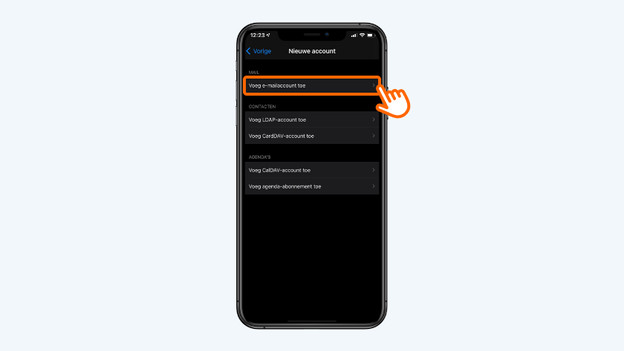
- Select 'Add Email Account'
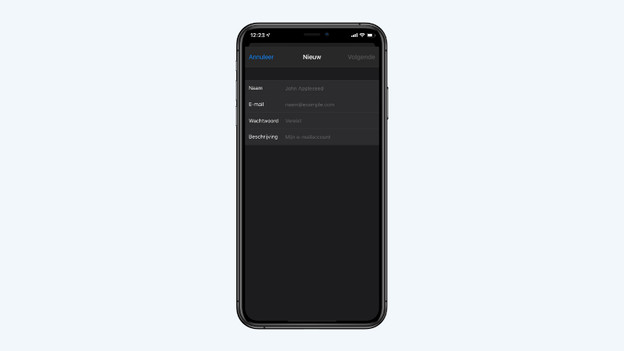
- Enter your name, email address, password, and a description. For example, 'Work email'.
- Tap 'Next' in the top right corner. The Mail app will now look for the email settings. When it succeeds, tap 'Done'. Didn't work? Follow the steps below.
Go to 'Settings' and tap 'Mail'
Choose 'Accounts'
Tap 'Add Account'
Choose 'Other'
Select 'Add Mail Account'
Enter your information
Enter settings manually
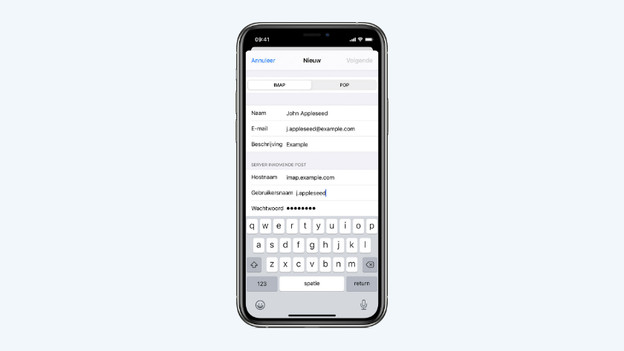
It's possible that the Mail app can't find your settings when you set up your email manually. You'll see a screen where you can enter the settings yourself. If necessary, request the information from your email provider.
- Choose 'IMAP' or 'POP'.
- Enter the information for 'Incoming Mail Server' and 'Outgoing Mail Server'. Tap 'Next'.
- Are all of the settings correct? Tap 'Save'.
Article by Lucinda
Apple Expert.