Written by Evany
Edited on
21 March 2023
·
08:33
How do you scan a QR code with your Apple iPhone?
With your iPhone, you can easily scan QR codes. You can see these codes in our stores or online, and direct you to a web page, for example. You can scan a QR code with the standard Camera app or via a shortcut in the control panel. In this article, we'll explain how you can do this.
Get started with scanning a QR code
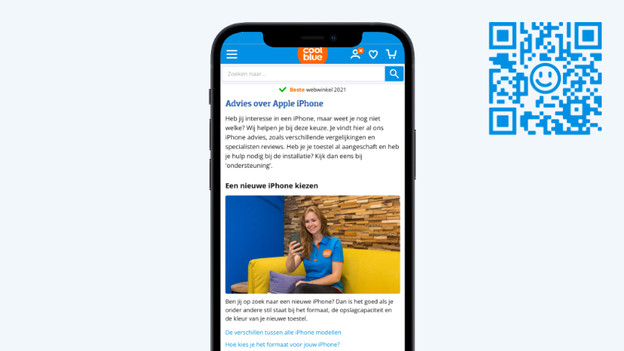
You can scan a QR code with your iPhone in different ways. You can do this via the Camera app or via the control panel. Are you viewing this page on your computer or tablet? Use the QR code on the image to test the following tips.
- Tip 1. Scan QR codes with the Camera app
- Tip 2. Scan a QR code via the control panel
Tip 1: scan QR codes with the Camera app
You can scan a QR code in no time with the standard Camera app.
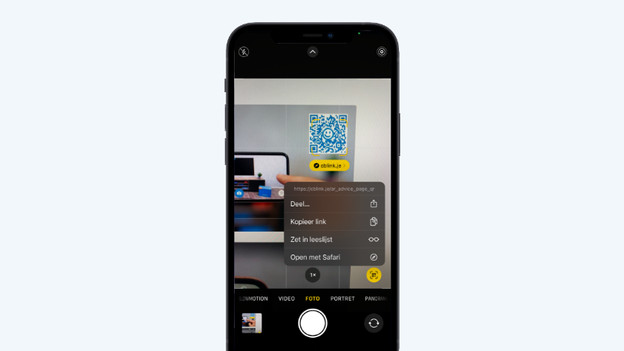
- Open the Camera app.
- Point the camera to the QR code.
- You'll now see a yellow bar. If you click it, a web page will open in your browser. Do you prefer to share the page or save it for later? Tap the yellow circle with the QR code. You'll get other options.
Point the camera to the code
Select what you want to do

Tip 2: scan a QR code via the control panel
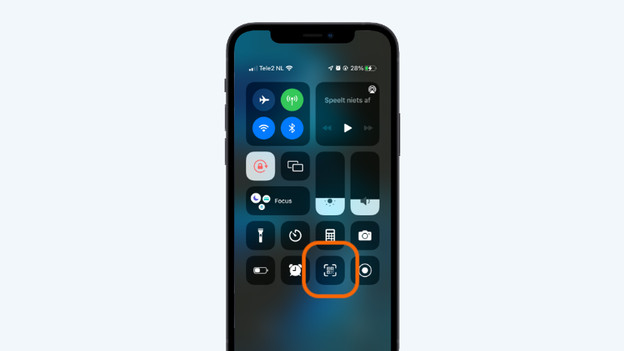
Do you prefer to scan QR codes via the control panel? This is also possible. If the code scanner isn't listed in your control panel yet, you'll first have to add it. Go to 'Settings' > 'Control panel' and tap the green plus in front of 'Code scanner'. You can now scan QR codes via the control panel. You can do this as follows:
- Swipe down from the top right of your screen to get to the control panel.
- Tap the square with the QR code.
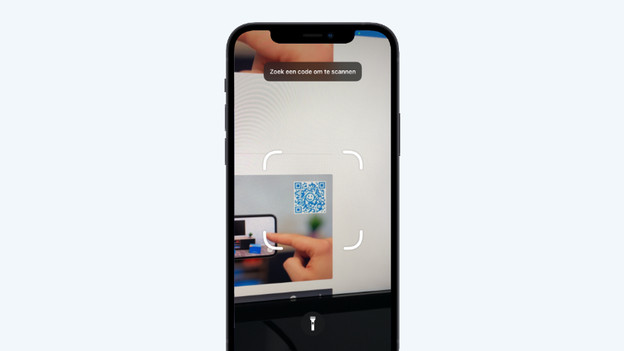
- Aim the square on the QR code. The web page will open in your browser right away.
Tap the square with the QR code
Aim at the QR code
Article by Evany
Apple Expert.