Written by Laszlo
Edited on
1 December 2023
·
11:26
5 tips to get used to your Chromebook
A Chromebook is slightly different than the more famous MacBook or Windows laptop. The ChromeOS operating system works differently than Windows or macOS. It also looks different from what you're used to. Luckily, we've got you covered. With these 5 useful tips and tricks, you'll quickly get used to your new Chromebook.

Get started with your Chromebook
Is this your first Chromebook? You'll notice ChromeOS works a bit differently from Windows or macOS. With these 5 tips, you can get the most out of your Chromebook:
- Tip 1. Discover the Google apps.
- Tip 2. Work faster with shortcuts.
- Tip 3. Easily take a screenshot.
- Tip 4. Manually add your printer.
- Tip 5. Use extra Google promotions.
Tip 1: discover the Google Apps
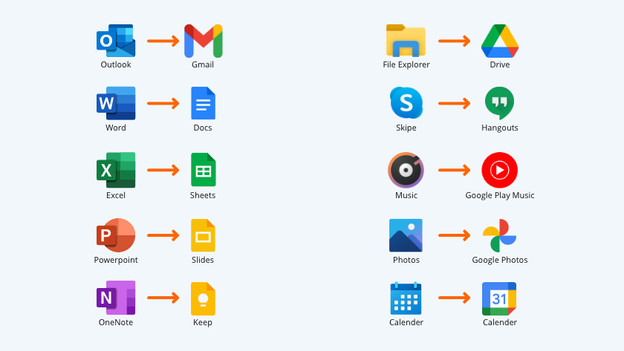
If you have a Chromebook, the biggest difference is in the apps. These often have different names compared to Windows or macOS apps. Don't worry, the functionalities are almost identical. You have Google Docs as a replacement for Word and Hangouts instead of Skype or Facetime. Take a moment to get to know the applications and you'll notice that they're almost exactly the same as what you're used to. The best part is that these apps are free.
Tip 2: work faster with useful shortcuts
Another detail that stands out in a Chromebook is how the keyboard looks different. Luckily, many of the keyboard shortcuts on Chromebooks are the same as on regular laptops. You still have the classic Ctrl + C and Ctrl + V combination to cut and paste, but the zoom function is also still there. You can use Ctrl + Shift or + and - to zoom in or out. That is how it works on Windows as well. Although the keyboard looks different, many shortcut keys are the same.
Tip 3: quickly take a screenshot
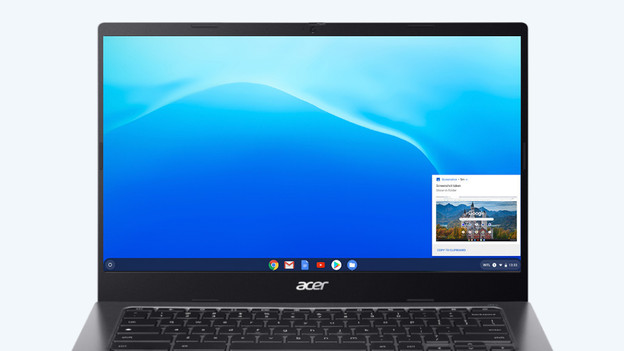
Taking screenshots is always useful. It does work a little bit differently on a Chromebook. On a laptop, you use a single button to take a screenshot, but a Chromebook requires a combination. Use Ctrl and the key with the squares on it to take a screenshot. If you also use the shift key, you take a screenshot of a part of your screen. Super convenient, right?
Tip 4: add your printer
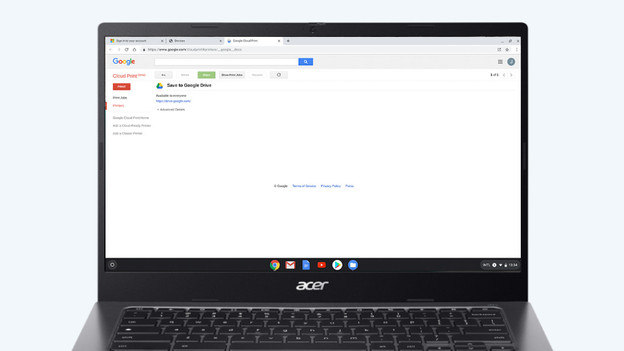
In the past, printing didn't work very well on a Chromebook. Nowadays, almost any printer works on a Chromebook. All you need is a printer that you can connect via WiFi. Via chrome://devices, you can add a printer. This way, you can easily print any document the way you're used to with regular laptops.
Tip 5: get extra Google promotions
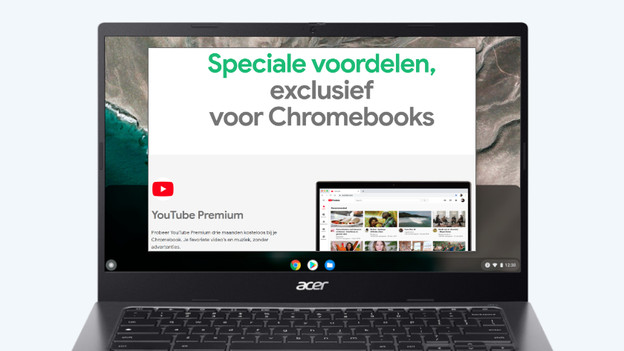
As a new Chromebook uses, you'll get extra advantages. For example, you get extra cloud storage by default. In addition, Google offers promotions for apps and hardware that change from time to time. Keep an eye on the Google website for these offers. You can find the Google page on Chromebook Perks. These are the current promotions:
- Use YouTube Premium for free for 3 months.
- Try Stadia Pro for 3 months.
- In addition to 100GB cloud storage, you can also activate 12 months Google One.
- Get 15% discount on selected apps and accessories.
Article by Laszlo
Laptop Expert.