Written by Kasper
Edited on
2 October 2025
·
10:17
5 tips to keep your desktop up to date
You want to make your new desktop feel like new for as long as possible. That way, you can enjoy using the PC even longer. To best maintain your new computer, we have 5 tips to keep your computer up-to-date. This will make the PC feel like the day you unboxed it for as long as possible.
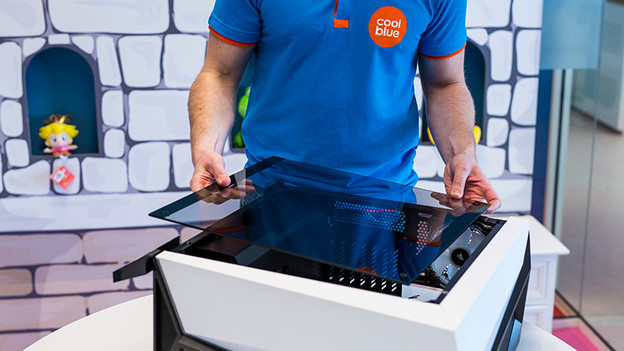
Get started with your desktop
With the following 5 tips, you can keep your PC up-to-date:
- Tip 1. install more RAM
- Tip 2. upgrade your storage space
- Tip 3. clean up your computer
- Tip 4. remove dust from the computer case
- Tip 5. update your drivers regularly
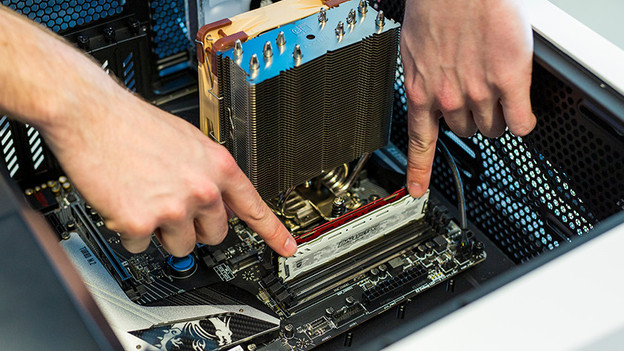
Tip 1: install extra RAM
If your computer feels slow, it's wise to install extra RAM on your computer. RAM ensures you can easily run multiple processes in the background without affecting the performance of your processor. Check what memory fits on your motherboard beforehand and buy accompanying RAM modules. Also check the number of free connectors. Connect the new modules to your motherboard to expand the RAM.
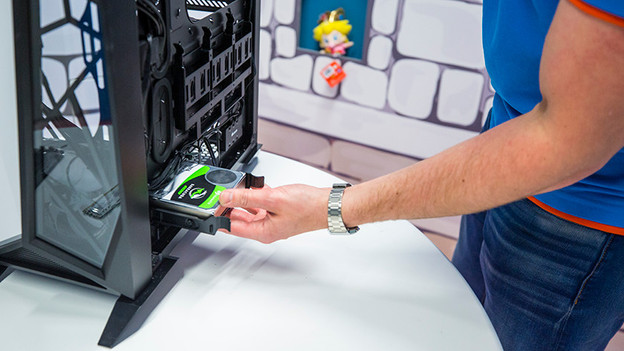
Tip 2: expand your storage capacity
Is your storage space getting overfull? We recommend you to install an extra SSD or hard drive in your PC. Most computers have room to install an extra drive. Don't you have space anymore? Consider cloud storage. Nowadays, you pay comparatively little money for a large amount of gigabytes. In addition, you'll be able to access your files from multiple appliances and locations when you use cloud storage.

Tip 3: clean up your computer
If you browse the internet a lot, your computer often saves cookies, temporary files, or other small packages of data. That's why we recommend you to clean up your computer every now and then to remove this data. As a result, your desktop remains fast. You can clean up the computer yourself, or with the help of software on the internet. Often, you can download this software for free and it'll do the work for you. That way, you won't have to do much yourself.

Tip 4: clean your computer case
Things that stand still collect dust. So does your desktop. Over time, a lot of dust builds up in your computer, which doesn't benefit the performance of the parts. Dust makes it more difficult for the PC to lose heat, so it'll shut down when it gets too hot in the case. That's why it's recommended to remove the dust from your computer case once every so often. Use a soft brush to clean all the parts and vacuum the released dust.

Tip 5: update your drivers regularly
A final important tip is to update the drivers. Drivers determine if your parts and peripherals work properly on your desktop. If your drivers aren't up-to-date, there's a chance your parts don't function properly either. It's best to update your drivers at least once a month to keep using your computer without worries.
Article by Kasper
Desktop Expert.