Written by Dounia
Edited on
2 August 2023
·
14:47
How do you change the name of your iPhone?
When you buy an iPhone, it automatically receives a name. The name of your iPhone is visible when you share files via AirDrop, for example. That's how others know which iPhone is yours. In this article, we'll tell you how to change the name in a couple of steps.
Get started with your iPhone
Your iPhone has a default name when you buy it, like 'iPhone'. When you share files via AirDrop or turn on your hotspot, you and your friends or family will recognize this name. You can adjust the name of your iPhone in 2 different ways.
- On your iPhone
- On your MacBook
Change the name of your iPhone
You can easily change the name on your iPhone. Go through the following steps, so you can give your iPhone the desired name.
- Go to 'Settings'.
- Tap 'General'.
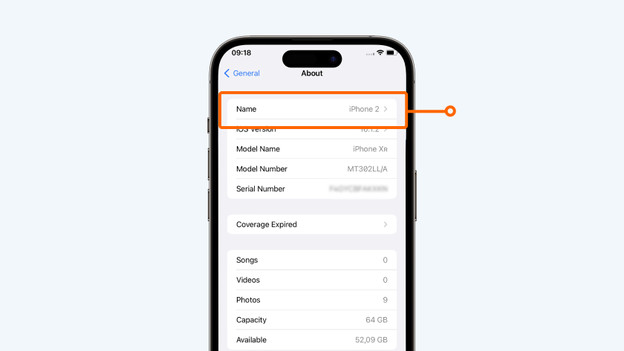
- Tap 'Info.
- Tap 'Name'.
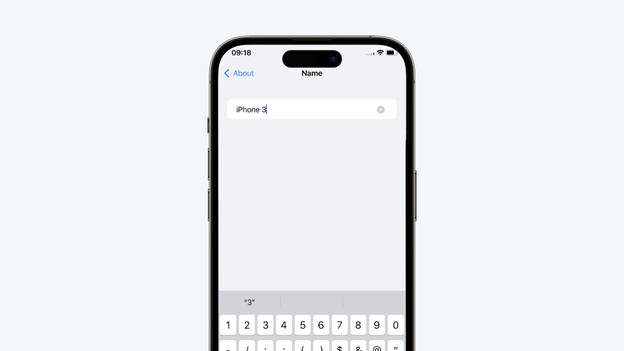
- Change the name of your iPhone to the desired name.
Go to 'Settings'.
Tap 'General'.
Tap 'Info'.
Tap 'Name'.
Change the name to the desired name.


Change the name of your iPhone on your MacBook.
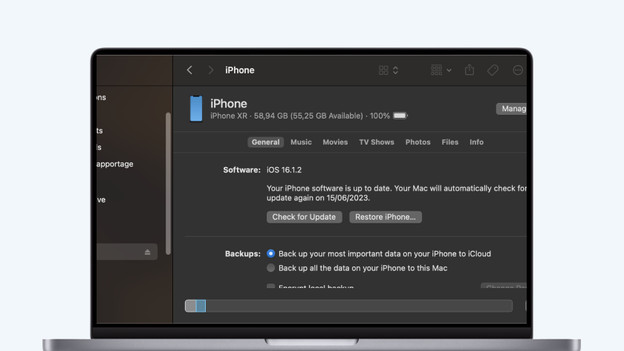
You can change the name of your iPhone on your MacBook too. You can do this via Finder.
- Open 'Finder' on your MacBook and make sure your iPhone is connected to your MacBook.
- Select your smartphone in the left column. Double-click the name of your iPhone on the top right of the window.
- Enter the new name and click enter.
Open 'Finder'.
Tap the name in the window on the right
Enter the new name and tap enter.


Article by Dounia
Apple Expert.