Written by Deanne
Edited on
25 August 2026
·
09:04
7 tips for when your Windows laptop crashes
Your laptop freezes or crashes, and you don't know what to do. Naturally, you want to get back to using your laptop quickly. Sometimes, simply updating your laptop is enough. In this article, we'll help you when your Windows laptop freezes.

Get started with your Windows laptop
Your laptop froze or crashed. With these 7 tips, we'll help you along:
- Tip 1: check for updates
- Tip 2: close running tasks
- Tip 3: reboot your laptop
- Tip 4: scan for viruses
- Tip 5: check for RAM and drive errors
- Tip 6: reboot your laptop in safety mode
- Tip 7: reinstall Windows
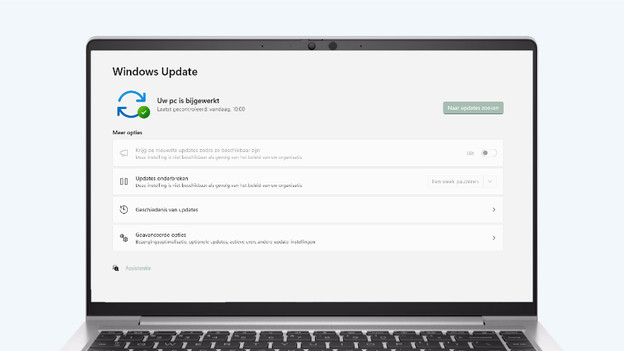
Tip 1: check for updates
Sometimes, your laptop works too hard. It'll overheat and crash as a result. Does your laptop feel hot? Make sure that you place your laptop on a flat surface and that it's not on something soft, like a pillow. Wait a while and then charge your laptop. Is nothing happening? Check if your laptop needs an update via the settings. Is your laptop up to date or can't you go to the settings? Move on to the next tip.
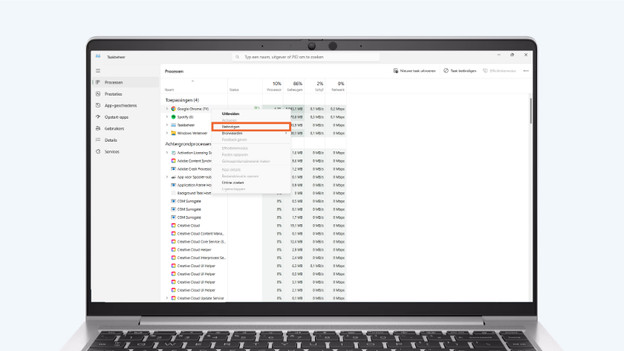
Tip 2: close running tasks
If you're running too many tasks, your laptop could crash sooner. Try to open the task manager on your laptop.
- Press ctrl + shift + esc at the same time.
- Under Processes, you'll find all programs and tasks your laptop is currently running. You can see how much space each task is taking up.
- Choose a task or program that's crashed or that's using up to most space.
- Right-click the task and then click Cancel.
- Can't cancel tasks via the task manager? Try the next tip

Tip 3: reboot your laptop
Didn't closing open tasks help? It can help to reboot your laptop. By forcing a reboot, you close all open tasks on your laptop. Note: you may lose files that haven't been saved.
- Press and hold the on/off button for at least 15 seconds.
- Your laptop will completely shut off.
- Wait a few seconds.
- Press the on/off button to turn on your laptop.
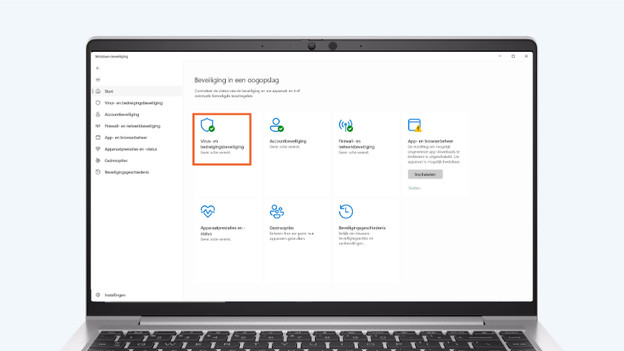
Tip 4: scan for viruses
Your laptop may sometimes have a virus or malware, causing it to reboot or crash again and again. That's why you should can for and delete viruses.
- Via the search bar, go to Windows settings.
- Click Virus and security update.
- Do you see No action required? Your laptop wasn't damagedn by viruses or malware.
- Do you see Action needed? Perform the tasks that the settings indicate.
Tip 5: check for RAM and drive errors
Other possible reasons that your laptop isn't working properly, are RAM or drive errors.
Check the RAM:
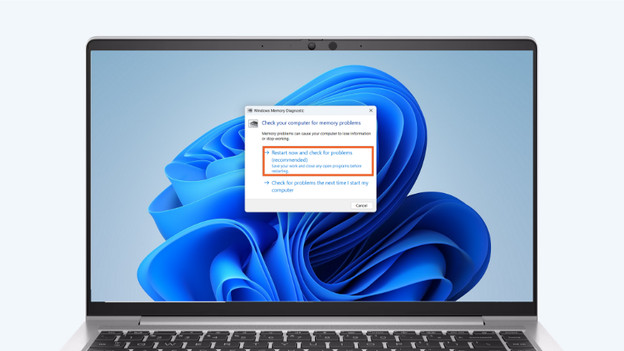
- Via the search bar, look for Windows RAM check.
- Click Reboot and problem assessment. Your laptop will now reboot and perform a RAM check. Note: you may lose files you hadn't saved yet.
Check the drive:
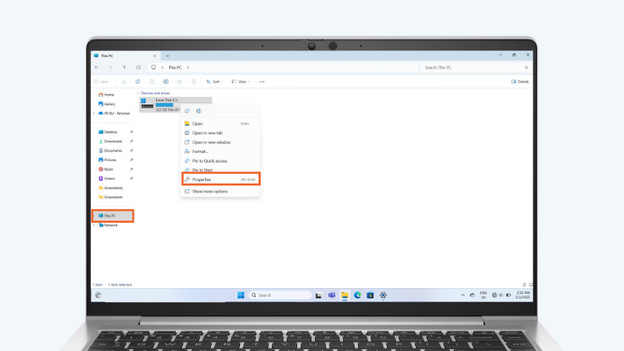
- Go to Explorer and click This PC.
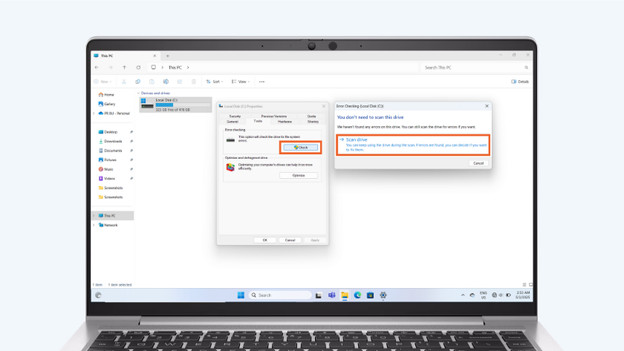
- Right-click your device and then Properties. Go to Extra.
- Click Check and then Scan drive.
Checking the RAM: look for Windows RAM check and click Reboot and problem assessment.
Check your drive: go to Explorer and click This PC.
Right-click your device and then Properties. Go to Extra and scan the drive.
Tip 6: reboot your laptop in safety mode
Didn't find any RAM or drive errors? It's useful to reboot your laptop in the safety mode.
- Hold Shift and press Reboot.
- Can't click on anything? Press ctrl + alt + delete at the same time while pressing the shift button.
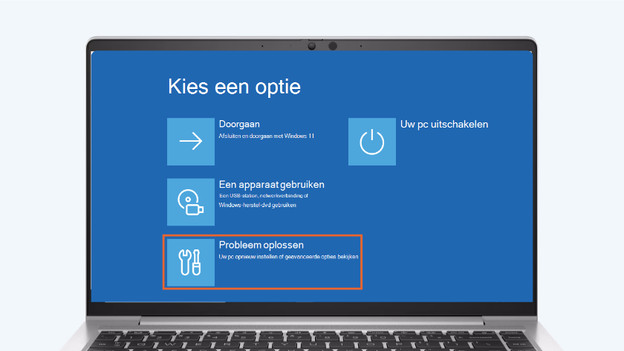
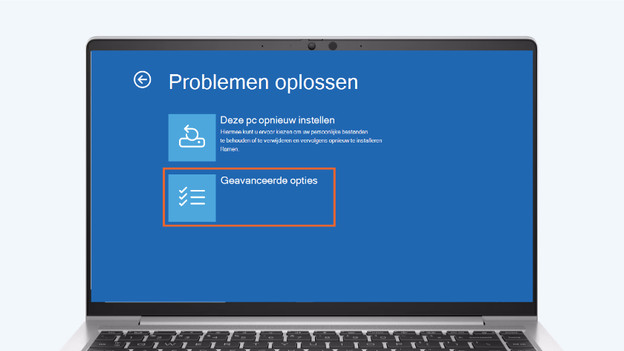
- Click Problem solving and then Advanced options.
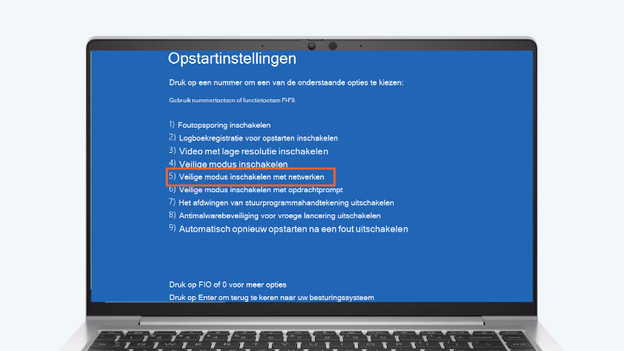
- Choose Reboot before Safety mode with network options.
- Your laptop will now reboot in safety mode.
Click Problem solving
Choose Advanced options
Choose Safety mode with network options
Tip 7: reinstall Windows
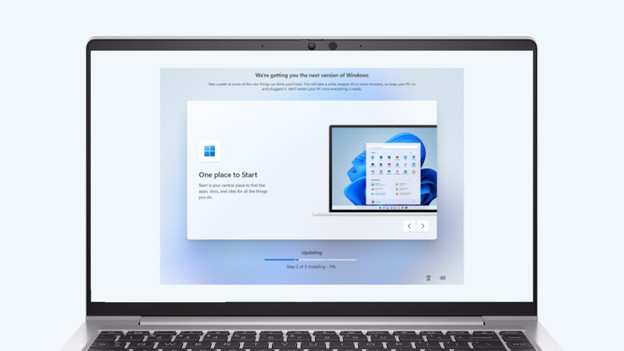
Didn't the tips above help? Reinstall Windows. Choose whether you want to reinstall Windows, install it via an installation medium, or want to perform a clean installation. With a regular reinstallation, you restore your laptop to a previous version. With an installation with an installation medium, you erase everything from your drive and install a copy of Windows. During this installation, you have the option to store certain files. With a clean installation, you erase all date from your drive and install a new copy of Windows. All files, documents, and programs will be erased.
Article by Deanne
Laptop Expert.