Written by Elaine
Edited on
27 August 2024
·
07:15
How do you solve problems with your USB ports?
You want to connect a USB device like a hard drive to your laptop or computer, but nothing happens when you do so. With the tips below, you can solve this problem.

Solve problems with your USB port in 4 steps
There are several ways to get the USB ports of your computer working again:
- Step 1. Restart your computer
- Step 2. Test a different USB port
- Step 3. Check your device manager
- Step 4. Update your USB controllers
Step 1: restart your computer
A simple step that can solve many problems is restarting your laptop or desktop. Test the USB port again after this.
Didn't this help? Go to the next step.
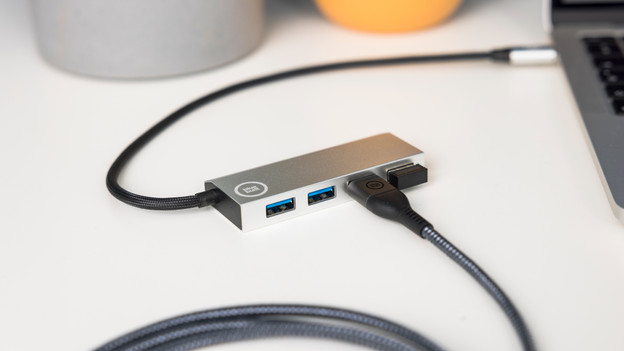
Step 2: test a different USB port
Connect your accessory or USB device to a different USB port on your computer or a different computer if you have one. That way, you can find out if the port is the problem or not. Does your device work in a different port or on the other device? It's possible that the port is broken.
Step 3: check your device manager
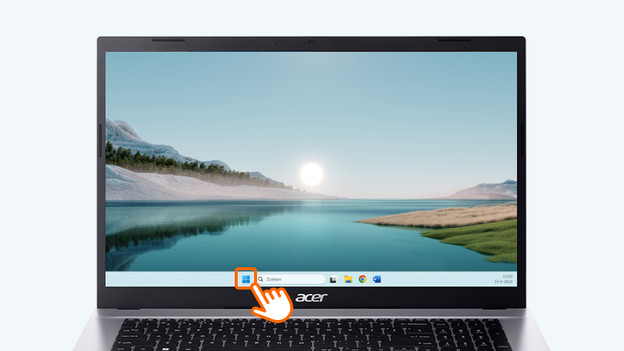
- Click the Start icon at the bottom left of your screen.
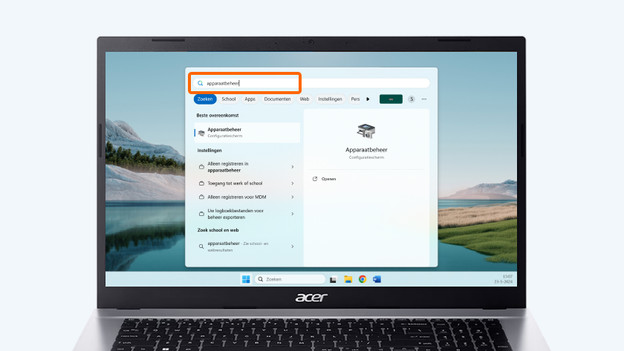
- Type Device Manager into the search bar and select the application. You might be asked to enter the administrator password.
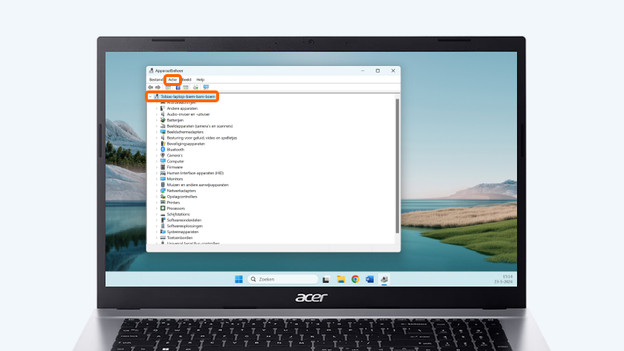
- Select your computer in Device Manager.
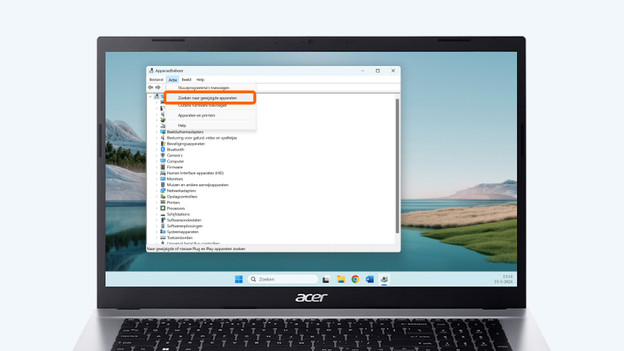
- Select Action and Scan for hardware changes.
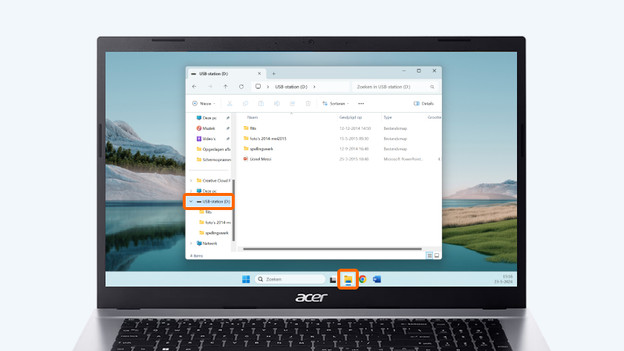
- Check if the USB device works now.
Didn't this method help? Continue with the next step.
Select the Start icon.
Type 'Device Manager' into the search bar.
Select your computer in Device Manager.
Select Action and Scan for hardware changes.
Check if the USB device works.
Step 4: update your USB controllers
- Open the Device Manager window again, as described in step 3.
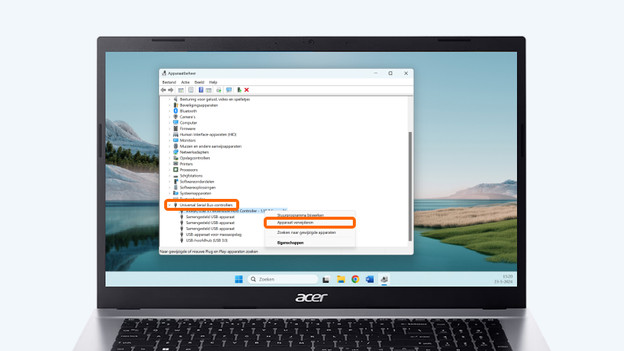
- Unfold the USB controllers option.
- Right-click on the first USB controller under USB controllers and select Uninstall device to remove the USB controller.
- Go through all USB controllers this way by undoing the installation of each controller one by one.
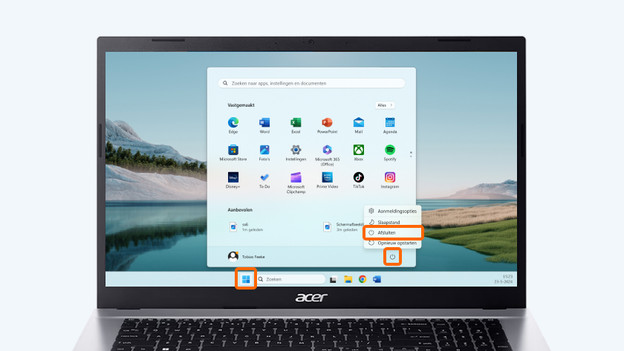
- Restart the computer. During the computer restart, Windows will automatically look for changed hardware and the removed USB controllers will be reinstalled automatically.
Select the Start icon.
Type 'Device Manager' into the search bar.
Unfold the option USB controllers.
Restart the computer.
Finally
Did none of these solutions help? There's a good chance that your USB port is broken. We recommend you get it fixed in this case. When your computer still falls under the warranty, it's best to contact the store you bought the computer at. Often, broken USB ports fall under the manufacturer's warranty.
Article by Elaine
Laptop Expert.