Written by Giovanni
Edited on
27 February 2025
·
15:40
Which type of USB-C port does your laptop have?
Want to know whether you can charge your laptop via the USB-C port? Or want to connect a docking station to the USB-C port of your laptop? It's useful to know which USB-C port your laptop has. Aren't you sure? Don't worry. Read how to find that out here.
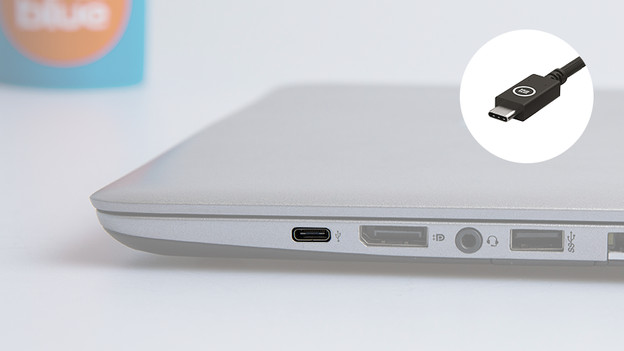
What's USB-C?
USB-C is a connector with many functions. You can charge your laptop, transfer data, or connect a monitor or docking station to your laptop. USB-C porta are oval and symmetrical.
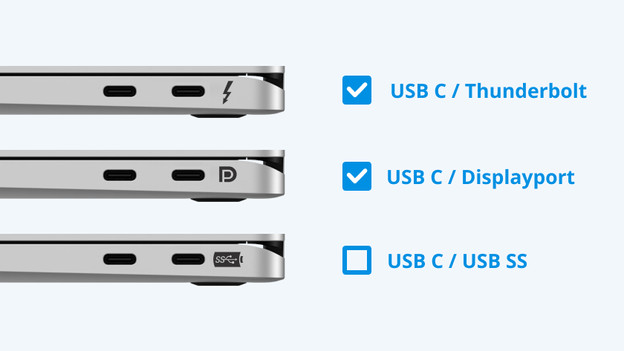
Which type of USB-C port does your laptop have?
In addition to the USB-C ports of a Windows laptop or Chromebook, you can often see a symbol or logo. This indicates what you can use the USB-C port for.
- Thunderbolt signal (Thunderbolt): you can charge your laptop via this port and transmit a video signal.
- D symbol (DisplayPort): you can transmit a video signal via this port, so you can connect a monitor.
- Battery symbol: you can charge your laptop via this port. This port doesn't support DisplayPort alt mode, so it doesn't transmit a video signal. Don't see a symbol? You'll have to check which type of USB-C port your laptop has yourself.
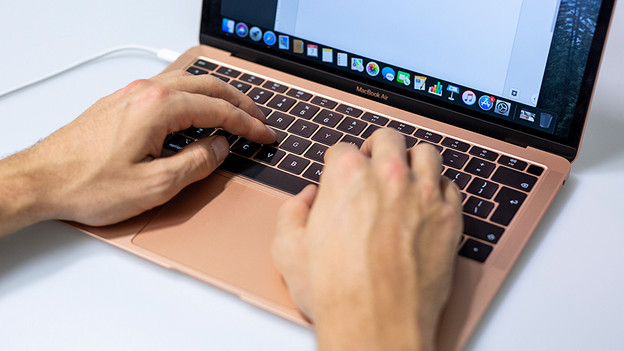
Which type USB-C port does your MacBook have?
On MacBook models, there's no logo or symbol next to the port. Since 2019, USB-C ports on MacBook models support charging and video signals. Want to check which type of USB-C port your MacBook has yourself? Follow these steps:
- Boot the MacBook.
- On the desktop, go to the Apple logo in the top left corner and click on it.
- Click 'About this Mac'.
- In the pop-up, you can see which model you have and which connectors the MacBook has.
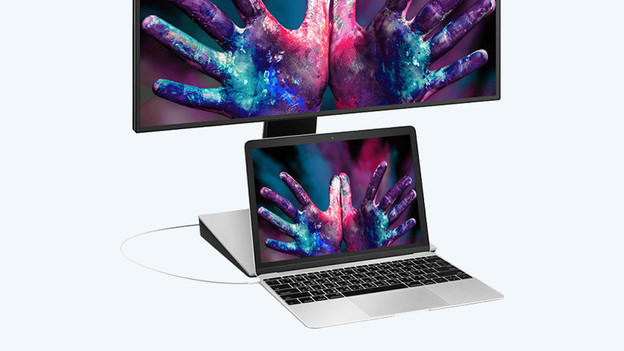
How do you check the type of USB-C port?
Do you have a cable to connect a monitor to the USB-C port of your laptop? Great, use this cable to connect your laptop to the monitor. If the monitor shows an image, the USB-C port of your laptop supports DisplayPort Alt Mode or Thunderbolt 3, and it's suitable to use with a docking station.
Doesn't your laptop have USB-C ports?
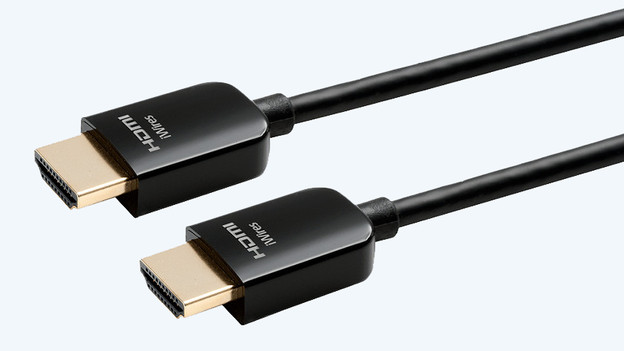
If your laptop doesn't have a USB-C port, there are alternative ports. You can connect various peripherals to the USB-A port, like a mouse, keyboard, and printer. There are various USB-A port types, like 2.0, 3.0, and 3.1. The latest version offers the fastest data transfer. Do you want to connect a monitor? Check if your laptop has an HDMI or DisplayPort. Both of these ports are suitable for monitors.
Article by Giovanni
IT Accessories Expert.