Welcome to your environment! You can order everything from your assortment with your personal budget here.

You can always return to the normal Coolblue website by clicking here.

Your outstanding budget (incl. VAT) is always visible here, so you know exactly how much you can spend.

Coolblue home

Help with your product
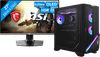
MSI MPG Infinite X3 AI 2NVZ9-231EU + MSI MPG 272URX QD-OLED

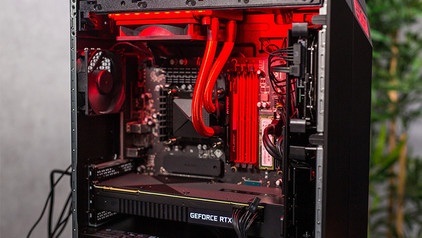
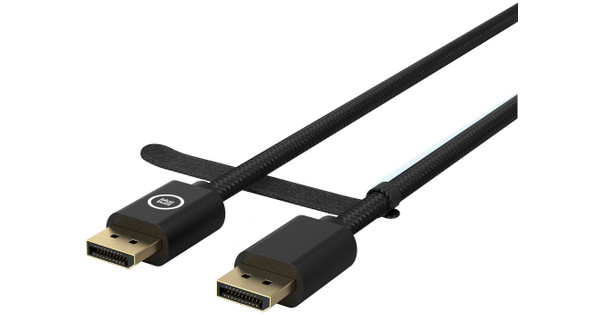
With the MSI MPG Infinite X3 AI 2NVZ9-231EU + MSI MPG 272URX QD-OLED gaming PC and gaming monitor bundle, you can game like a pro. With the NVIDIA GeForce RTX 5090 video card, you can play every game smoothly and at the highest settings even with demanding graphic mods. Thanks to the Intel Core Ultra 9 Series 2 processor and 64GB DDR5 RAM, the PC is powerful enough for Quad HD streaming, 3D editing, and game design. The NPU and AI functions of the processor match the frame rate and resolution automatically to each other for a smooth gaming experience. Your components stay cool with the MSI Silent Storm Cooling AI technology and the water cooling, even during long gaming sessions. On the 27-inch 4K monitor with 240Hz refresh rate and 0.03ms response time, your games can look smooth. The AI crosshair technology of the screen changes the color of the focus point automatically, so you can see where you're aiming. Your games also look more realistic thanks to the OLED panel, which shows shadows and dark spaces better. Note: the maximum refresh rate via HDMI is 144Hz. For 240Hz gaming, you connect the monitor via DisplayPort. Advice from our gaming PC expert: Photo editing: suitable Video editing: suitable Virtual reality: suitable Streaming: suitable Game design and 3D animation: suitable Wondering if the GeForce RTX 5090 video card in this desktop can run your favorite game at high settings (60 fps)? Check the list below to see if this desktop meets the recommended system requirements: League of Legends: suitable Fortnite: suitable EA Sports FC: suitable Call of Duty: suitable Hogwarts Legacy: suitable Elden Ring: suitable Microsoft Flight Simulator: suitable Receive an email with a personal voucher code for 1 free year of Norton 360 Deluxe antivirus 24 hours after purchase, worth € 94.99.

Read all tips here

Which product do you want to see articles about?

5 tips to keep your desktop up to date

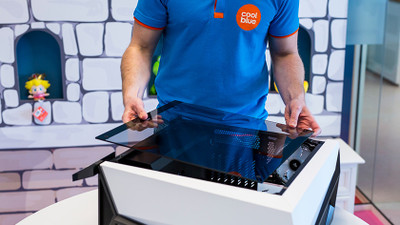
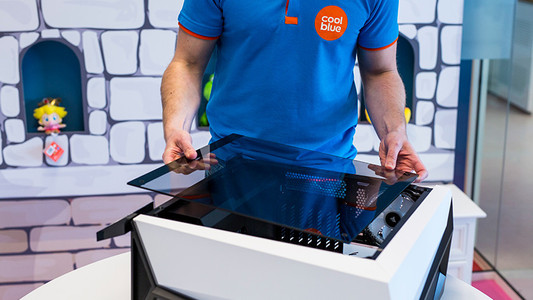
You want to make your new desktop feel like new for as long as possible. That way, you can enjoy using the PC even longer. To best maintain your new computer, we have 5 tips to keep your computer up-to-date. This will make the PC feel like the day you unboxed it for as long as possible.

What's overdrive on your monitor and how do you use it?

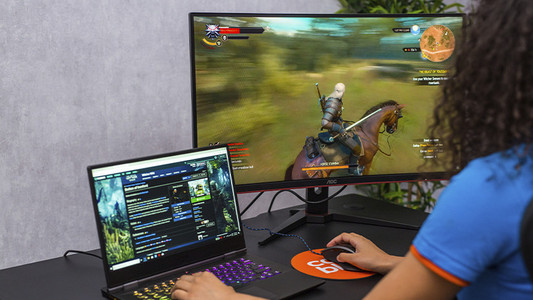
With the monitor overdrive software, you can improve the image quality and response time of your gaming monitor. In addition, you prevent ghosting when you play games. But you do you set up this software for your monitor? For example Acer Monitor Overdrive or AOC Monitor Overdrive? In this article, we'll explain what overdrive is and how to turn it on or off.

What's overdrive on your monitor and how do you use it?

With the monitor overdrive software, you can improve the image quality and response time of your gaming monitor. In addition, you prevent ghosting when you play games. But you do you set up this software for your monitor? For example Acer Monitor Overdrive or AOC Monitor Overdrive? In this article, we'll explain what overdrive is and how to turn it on or off.
How do you connect a PlayStation 5 to your gaming monitor?

You chose a gaming monitor for your PlayStation 5, but how do you connect it? And how do you set up the right resolution and refresh rate? In this article, we'll explain how to do so step by step. This way, you can enjoy the best PlayStation 5 gaming experience via a gaming monitor.

How do you solve ghosting?

Ghosting is an effect that occurs with monitors with a low response time. Because pixels change color too slowly, it seem as if a ghost follows your movements. This is particularly annoying while gaming, but it can also occur while you're scrolling or watching a video. In this article, we'll explain how to fix this in 4 steps.

Solve dead pixels on your monitor

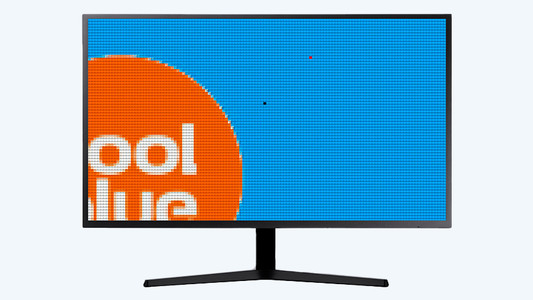
If a pixel on your monitor has a different color, you're dealing with a dead or stuck pixel. These pixel problems are quite different, in terms of both cause and solution. For example, a stuck pixel can be fixed, but a dead pixel can't. In this article, we'll explain what causes these problems, how to discover them, and what you should do.

Solve dead pixels on your monitor

If a pixel on your monitor has a different color, you're dealing with a dead or stuck pixel. These pixel problems are quite different, in terms of both cause and solution. For example, a stuck pixel can be fixed, but a dead pixel can't. In this article, we'll explain what causes these problems, how to discover them, and what you should do.

How do you solve screen tearing and stuttering?

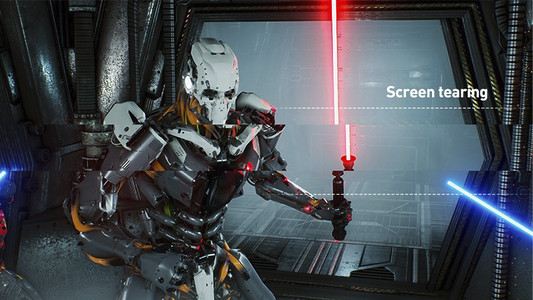
If you want to prevent screen tearing and stuttering, it's important that your video card and monitor are synchronized. There are 3 technologies that match the fps of your graphics card to the refresh rate of your gaming monitor. These are G-Sync, FreeSync, and VSync. We'll explain how to set this up on your computer.

How do I connect a monitor to a tablet?

A tablet is a good replacement for your laptop or desktop. But what if you want to work with your tablet on a slightly larger screen? In this article, I'll explain how to connect your iPad or Android tablet to an external monitor.

How do I set up a second display?

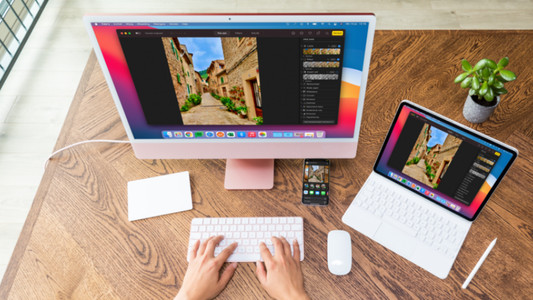
A second screen gives you extra screen space when you're working on a laptop or desktop. You can connect this in no time. Plug the connector of the monitor into a socket before you start. We'll explain how to install the screen and connect it to your computer.

What's overdrive on your monitor and how do you use it?

With the monitor overdrive software, you can improve the image quality and response time of your gaming monitor. In addition, you prevent ghosting when you play games. But you do you set up this software for your monitor? For example Acer Monitor Overdrive or AOC Monitor Overdrive? In this article, we'll explain what overdrive is and how to turn it on or off.
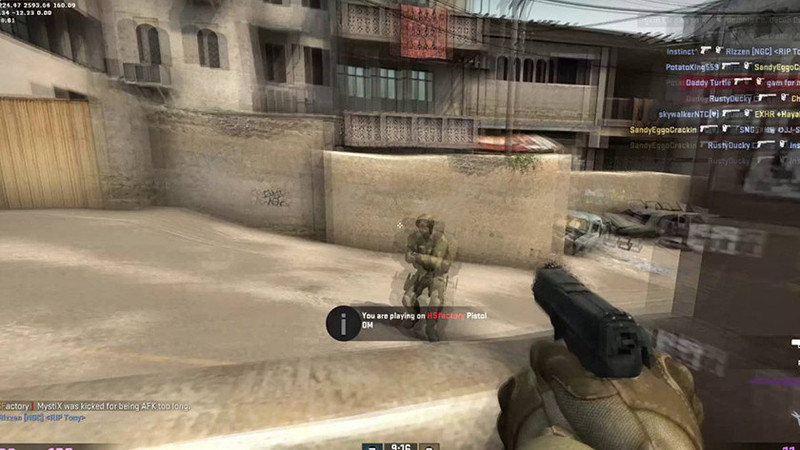
What's overdrive on your monitor and how do you use it?

With the monitor overdrive software, you can improve the image quality and response time of your gaming monitor. In addition, you prevent ghosting when you play games. But you do you set up this software for your monitor? For example Acer Monitor Overdrive or AOC Monitor Overdrive? In this article, we'll explain what overdrive is and how to turn it on or off.
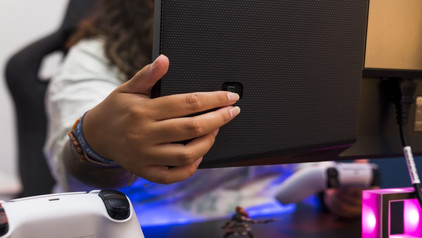
How do you connect a PlayStation 5 to your gaming monitor?

You chose a gaming monitor for your PlayStation 5, but how do you connect it? And how do you set up the right resolution and refresh rate? In this article, we'll explain how to do so step by step. This way, you can enjoy the best PlayStation 5 gaming experience via a gaming monitor.

How do you solve ghosting?

Ghosting is an effect that occurs with monitors with a low response time. Because pixels change color too slowly, it seem as if a ghost follows your movements. This is particularly annoying while gaming, but it can also occur while you're scrolling or watching a video. In this article, we'll explain how to fix this in 4 steps.

Solve dead pixels on your monitor

If a pixel on your monitor has a different color, you're dealing with a dead or stuck pixel. These pixel problems are quite different, in terms of both cause and solution. For example, a stuck pixel can be fixed, but a dead pixel can't. In this article, we'll explain what causes these problems, how to discover them, and what you should do.

Solve dead pixels on your monitor

If a pixel on your monitor has a different color, you're dealing with a dead or stuck pixel. These pixel problems are quite different, in terms of both cause and solution. For example, a stuck pixel can be fixed, but a dead pixel can't. In this article, we'll explain what causes these problems, how to discover them, and what you should do.

How do you solve screen tearing and stuttering?

If you want to prevent screen tearing and stuttering, it's important that your video card and monitor are synchronized. There are 3 technologies that match the fps of your graphics card to the refresh rate of your gaming monitor. These are G-Sync, FreeSync, and VSync. We'll explain how to set this up on your computer.

How do I connect a monitor to a tablet?

A tablet is a good replacement for your laptop or desktop. But what if you want to work with your tablet on a slightly larger screen? In this article, I'll explain how to connect your iPad or Android tablet to an external monitor.

How do I set up a second display?

A second screen gives you extra screen space when you're working on a laptop or desktop. You can connect this in no time. Plug the connector of the monitor into a socket before you start. We'll explain how to install the screen and connect it to your computer.

How do you ensure a good sitting posture?

Sometimes it's hard to find the correct sitting position, especially when you work from home. We explain how to sit in the best sitting position on your desk chair, what the ideal height is for your desk, and how to setup your equipment ergonomically. That way, you can work comfortably both at home or at the office.

Updating Windows on your PC

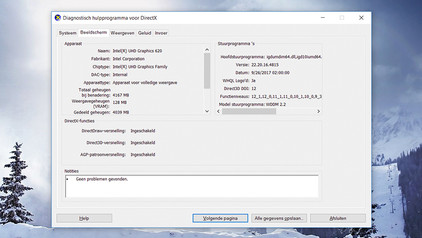
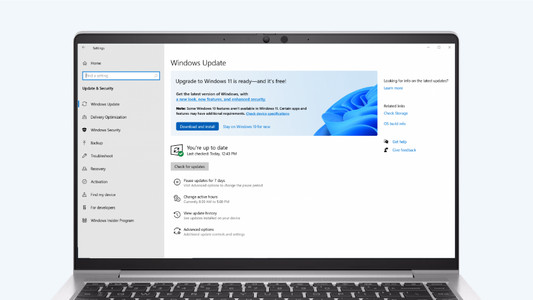
The most common problems with your computer often have the same solution. That's updating Windows or updating your driver. Doesn't your internet connection work? Don't your mouse or keyboard respond? Don't you see an image when you connect a monitor to your PC? Or do you have a similar technical problem? Continue reading.

How do you upgrade to Windows 11?

Do you want to upgrade Windows 10 to Windows 11, but don't know how that works? In this article, we'll help you out. You can update many Windows 10 laptops and desktops to Windows 11 for free. This is the latest Windows version. You can easily install the Windows 11 upgrade in 4 steps.

5 tips to keep your desktop up to date

You want to make your new desktop feel like new for as long as possible. That way, you can enjoy using the PC even longer. To best maintain your new computer, we have 5 tips to keep your computer up-to-date. This will make the PC feel like the day you unboxed it for as long as possible.

How do I transfer files from an old PC to a new one?

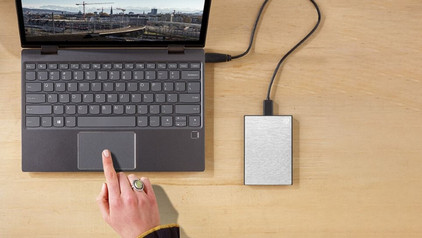
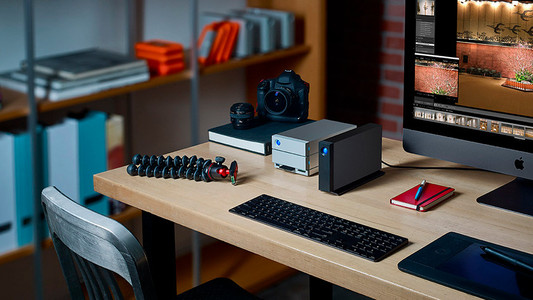
Do you still have files on your old PC that you'd like to have on your new one? It's time to transfer this data. That way, you can also use these files on your new desktop. But how do you transfer data from one computer to the other? In this article, we'll explain how to do this.

My desktop doesn't have an image signal, what do I do?

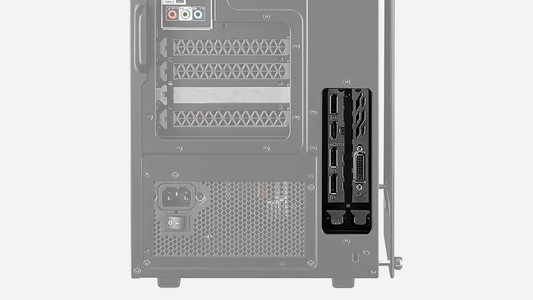
You have a desktop with a video card, but when you connect a monitor, the monitor doesn't transmit an image. Annoying. Often, this has to do with the ports you connect the monitor to. In this article, we'll explain what to do when your desktop doesn't transmit an image signal.

Subjects
Didn't find your answer?

Find an answer to your question quickly and easily via our customer service.

Coolblue specialist
Personal chat Digitalk.
You're now chatting with Coolblue customer service
This chat is closed
foo
Oeps File size is larger than 5MB. Upload a smaller file.